Securely sync your Linarc project repository with Google Drive for centralized access. This two-way integration automatically updates files across both platforms—ensuring all manual uploads and system-generated documents (like RFIs, Submittals, and T&M tickets) are always up to date.
- Ensure all project-related documents are securely backed up in real time or on demand, based on your sync preferences.
- Share files secrely with external stakeholders who do not have access to Linarc
- The bidirectional sync automatically pushes project files from Linarc to Google Drive. It ensures that updates made to your Google Drive folders are seamlessly and instantly reflected in the Linarc project file repository.
To sync your project files with Google Drive
- Ensure that you are in the 'External Drive' screen of the project management console. If not,
- Click the main menu at the top-left
- Click 'Cloud Drive' under 'Documents' menu
- Select 'External Drive'.
Prerequisite: You can only sync project files if your company administrator has configured the Google Drive integration. Check that the 'Service Configuration' status shows as 'Yes' in the Google Drive card. If it does not, please contact your administrator to complete the setup.
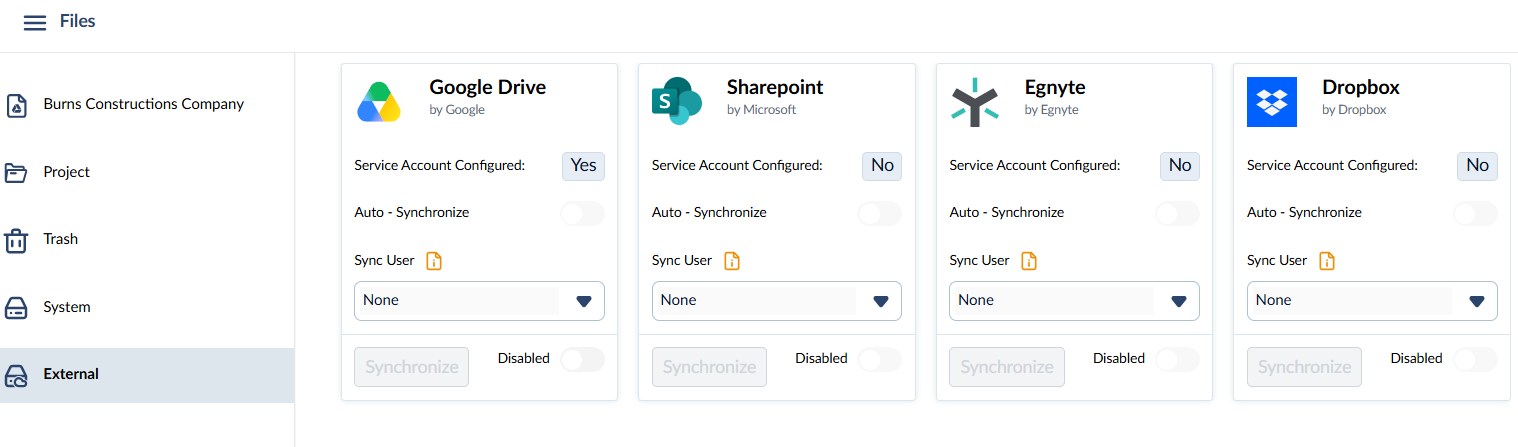 Use the toggle switch at the bottom of the tile to enable file sync for the project.
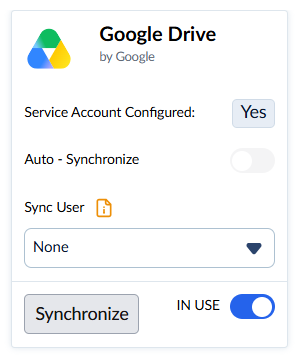
- Click the 'Synchronize' button to initiate the export of your project files from Linarc to Google Drive
A new folder will be created in your Google Drive using your project's name. Inside, the system automatically generates subfolders (Company Drive, Project Drive, and System Drive) and organizes your files accordingly.
- Turn on 'Auto Synchronize' to keep your files up to date. Any file additions, deletions, or name changes made in the Linarc console will reflect in your Google Drive in real time.
Enable Bi-directional Synchronization
Bidirectional synchronization ensures that any modifications made within your Google Drive are automatically mirrored in Linarc’s project file repository, and vice versa.
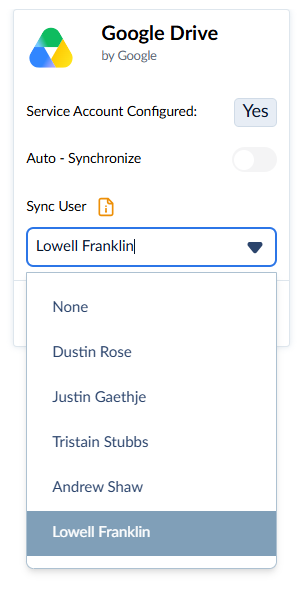
To execute these automated file transfers, the integration requires a designated authentication account. You must select a specific team member to impersonate as the integration user. Linarc will use this user's authorized credentials to securely perform all read, write, and delete operations on your company's behalf.
For example, to successfully synchronize a deleted file across both platforms, this designated integration account must possess the necessary file management permissions in both Linarc and the connected Google Drive workspace.
To select an impersonating user
- Use the drop down to select the user
Any new files added directly to your Google Drive folder will automatically import into the corresponding project folder within Linarc.
Was this article helpful?
That’s Great!
Thank you for your feedback
Sorry! We couldn't be helpful
Thank you for your feedback
Feedback sent
We appreciate your effort and will try to fix the article