The Project Information screen shows the general details of the construction project, like the project type, your role in the project, site address and contact details, and more.
- Typically, the general contractor adds a project and invites other companies to collaborate.
- If a project was created by the GC, then only the PMs of the GC can edit the details at any time for corrections and add any missing information.
- If a project was added by the Owner, Architect, or Subcontractor, the project managers of that company could edit the details until a GC is added. Once the GC accepts the project, only the PMs of the GC company can edit the details.
- Project managers of other collaborating companies can only view the details of the project.
To open the project information screen
Ensure you are on the 'Project Information' screen within the 'Information' module of the project. If not:
- Click the main menu at the top-left
- Click 'Information' under 'Project' in the menu drop-down.
- Click 'Pencil' icon on the top right.
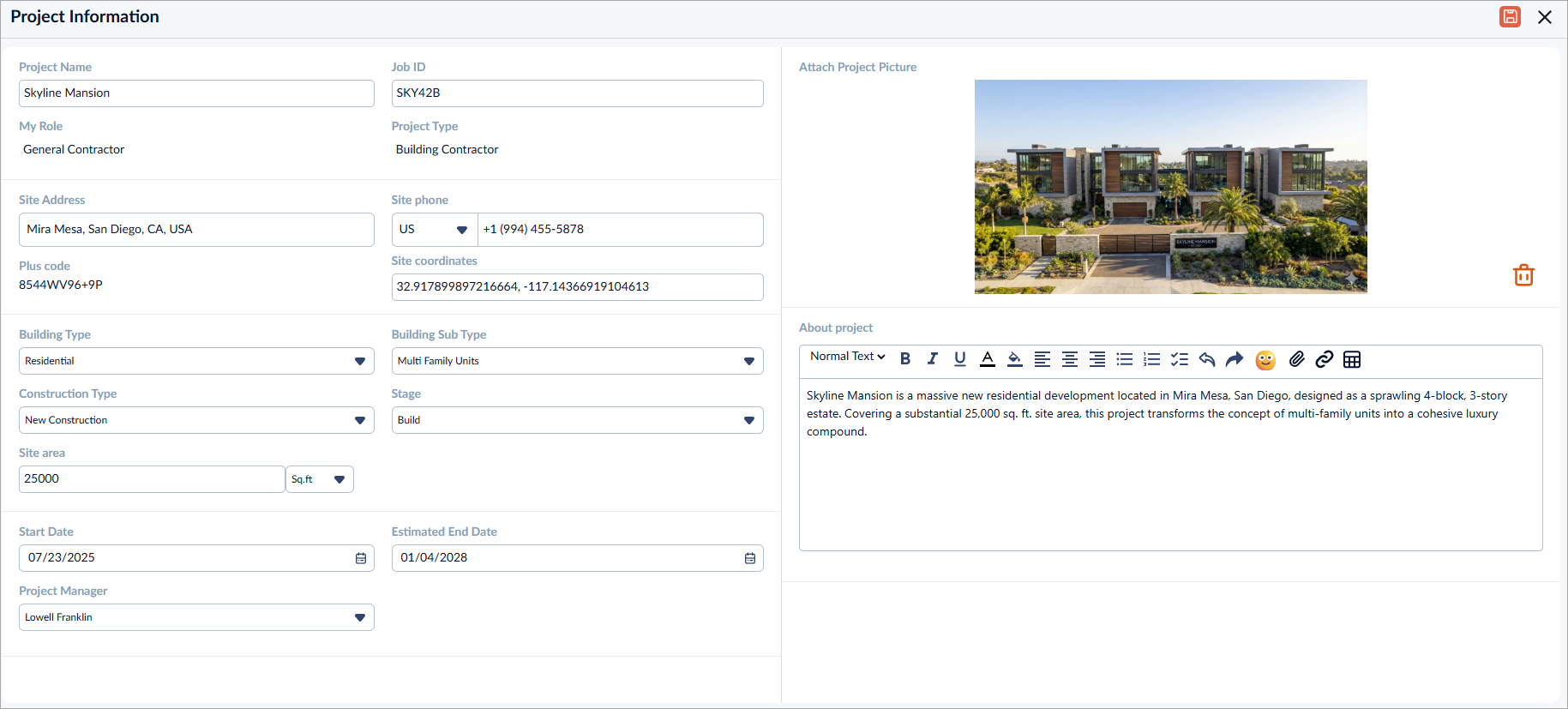
- Edit the details as required
The fields are similar to those required for creating a new project. See Create Project for details.
Note:
The ‘Start Date’ cannot be modified once the ‘Scheduler’ module has been populated. You can extend the project’s ‘End Date,’ but you cannot move it to an earlier date.
- Click the 'Save' button at the top right for your changes to take effect.
Was this article helpful?
That’s Great!
Thank you for your feedback
Sorry! We couldn't be helpful
Thank you for your feedback
Feedback sent
We appreciate your effort and will try to fix the article