The Linarc platform allows for a collaborative review process between the general contractor (GC) and subcontractors. After you submit your initial estimate, the GC reviews the details to ensure they align with the project's scope and budget. If the GC requires adjustments—such as price updates, quantity changes, or scope clarifications—they will send the estimate back to you for a revision. When a revision is requested, you can
Update your original bid by adjusting the cost data of existing line items or adding new line items as required
Re-upload a new estimate file to completely replace your previous submission
Add supporting documents, such as photos, or notes to address any specific concerns raised by the GC.
This iterative process ensures that both parties are in full agreement before the final approval.
Once revised, you can resubmit the estimate directly through the platform. The GC will then perform a final review of your updated bid to move forward with the approval process.
To submit your estimate revisions
- Click the notification to open the change order
Alternatively, you can open the change order from the 'CO Invites' screen. To do so:
- Click the main menu at the top-left
- Click 'Change orders' under 'Financials & Controls'
- Click 'Boards' on the left
- Click the change order card to open
- Click the 'My Estimates' tab
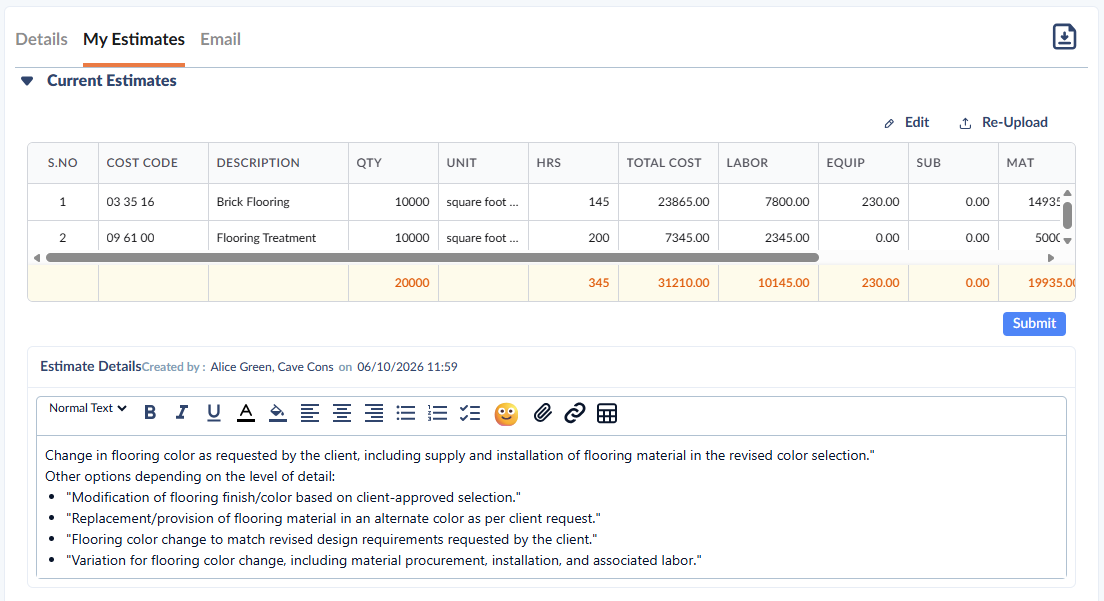
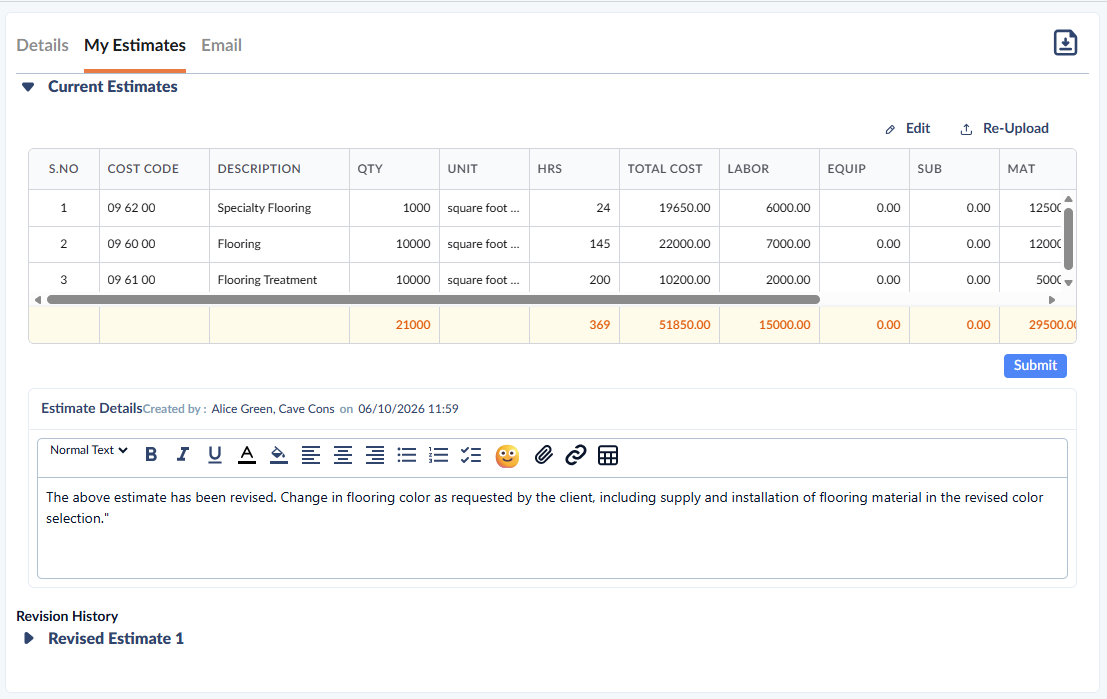
Your current estimate is displayed under the 'Current Estimate' tab:
Tip: If the change order estimate requires contribution from a stakeholder or vendor not included in the Linarc's project directory, you can email the PDF version of the CO to that external party to get their inputs. Once the response is received, you can incorporate it into the CO and proceed with your action. See to Email a Change Order to External Stakeholders learn more.
Edit your estimate
- Click
 the button on the top right of the estimate pane and start editing the estimate line items one by one.
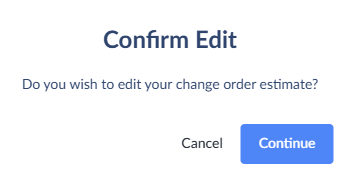
- Click 'Continue' to confirm your action
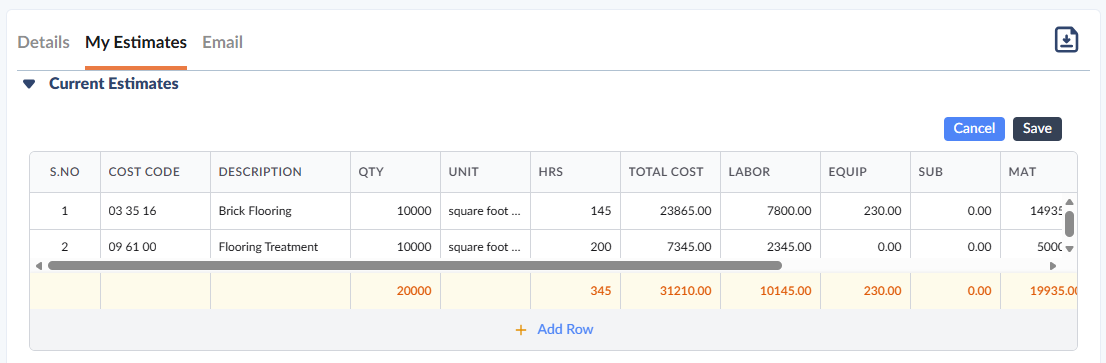
- Double-click inside the cells to edit their respective values
- Click 'Add Row' at the bottom to insert a new estimate row and add the details. See Respond to Estimate Requests for more details.
- Click 'Save' to save your estimate draft. You will be able to add details and edit the estimate until submission.
Re-upload your estimate
- Click the
 button on the top right of the estimate pane
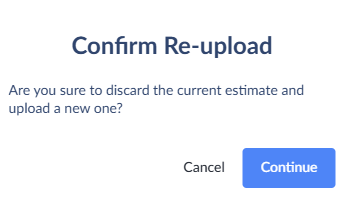
- Click 'Continue' to confirm your action
- Upload or drag and drop the file into the box in the upper pane of the 'My Estimates' screen. See Respond to Estimate Requests for more details
Your entries are validated and added to the draft list if there are no errors in them.
Tip:
The entries with errors, for example, the task codes, are shown in red. You can directly double-click on the item and edit it.
- Click 'Save'
- Review your draft estimate
- Click
 to save your estimate draft. You will be able to add details and edit the estimate until submission.
Estimate Details
The estimate details text box opens as soon as you save your estimate file. You can enter the details and descriptions for your estimate and add supporting documents and photos.
- Click the text box and start typing your description.
- Use the options at the top to apply formatting, insert emojis, etc., to your description.
- Click
 on the top right to add attachments like photos, images, and/or other document files to your description.
 - Add your comments at any time to share with the other participants collaborating on the change order work
- Click
 once you have finalized the estimate, to present the same to the general contractor
Your estimate is forwarded to the general contractor. Your previous estimates will be listed below as 'Revised Estimate,' and your latest estimate is displayed under ' Current Estimate'. You will be notified once the GC processes your estimate and accepts or requests a revision for it.
Tip:
You can chat with the participants of the change order at any stage. Click thebutton on the top right to start a chat session. See Chat and collaborate on a CO for more guidance.
Was this article helpful?
That’s Great!
Thank you for your feedback
Sorry! We couldn't be helpful
Thank you for your feedback
Feedback sent
We appreciate your effort and will try to fix the article