Plan sheets uploaded to a project can be shared with participants according to the permissions applied to the plan set containing them.
- You can define and update sharing restrictions only for the plan sets you uploaded or created and own
- By default, the sharing settings of a plan set apply to all plan sheets within the set
There are three types of access restrictions applied to the plan set:
- Public - Viewable by all users belonging to all companies participating in the project
- Restricted - Viewable only by users belonging to selected companies participating in the project
- Private - Viewable only by selected persons from your company who participate in the project. This includes, for example, fellow project managers, construction managers, project directors, etc.
To set access rights to a plan set
- Click the Main Menu icon at the top-left of your screen.
- Select 'Plan Sheets' under the 'Documentation' section of the drop-down menu
- Choose 'Plan Sets' on the left.
- Open the Plan set to which you want to set access
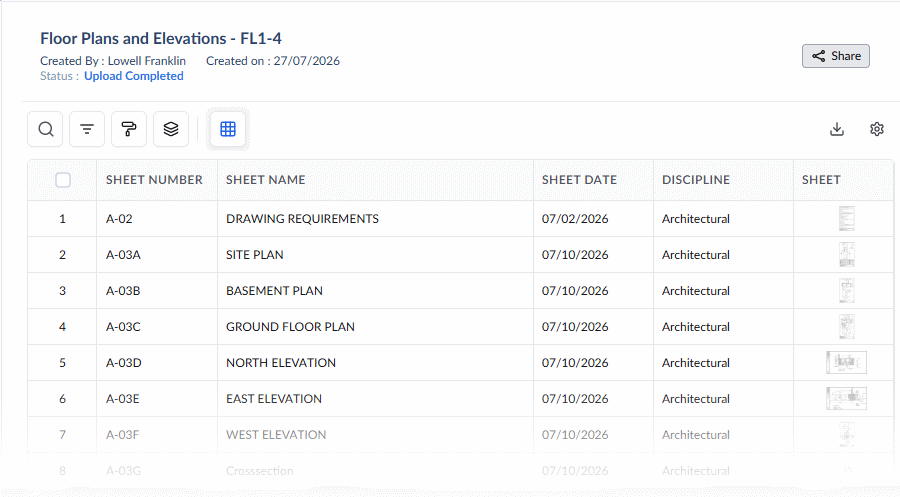
- Click
 on the top right
 - Choose the restriction level in the 'Set Visibility' pop-up:
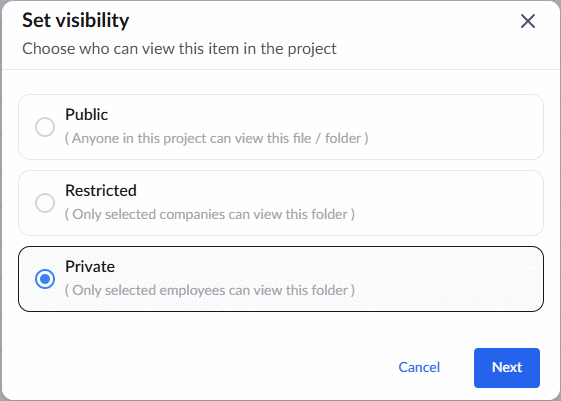
Note: The default access is set to 'Private'.
There are three options:
- Public- The plan set is visible to all users from all participating organizations, with access permissions for plans in their role
- Choose 'Public' and click 'Share'.
- Restricted- You can choose the participating companies with which you want to share the plan set.
- Choose 'Restricted' or click on 'Restricted' to set this level
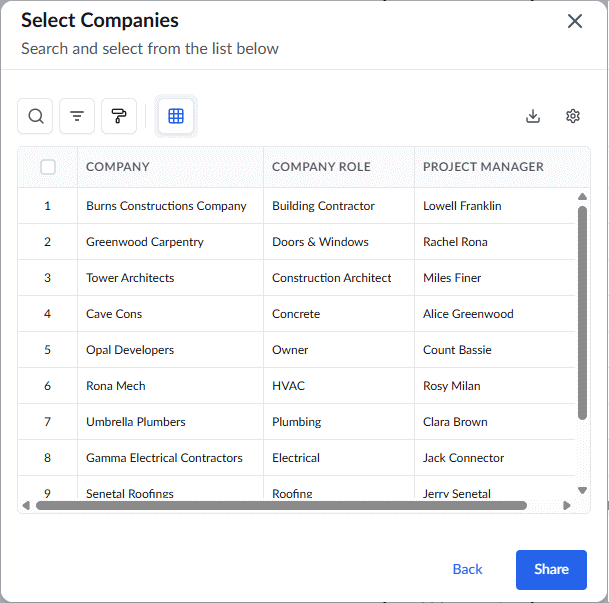
- Select the companies from the list of collaborating companies by clicking their serial numbers
- Use the 'Ctrl' or 'Shift' keys on your keyboard to select more than one company at a time
- Click 'Share'
The plan sheets in that set will be visible only to the project manager-level users from the selected companies
- Private- You can choose the other employees of your company who are participating in the project to share the plan set
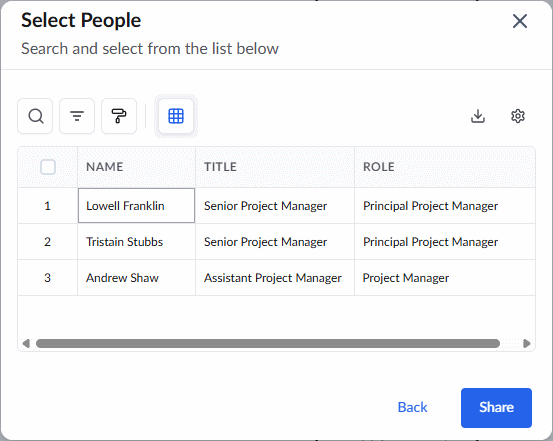
- Choose 'Private' or click on 'Private'
The list shows the project team members of your company. If the person you want to add is not on the list, add the person to the project, then repeat the process. See Add Project Team Members for more guidance on this.
- Select persons by clicking their serial numbers
- Click 'Share'
The sheets in the plan set are now accessible by the selected members.
Was this article helpful?
That’s Great!
Thank you for your feedback
Sorry! We couldn't be helpful
Thank you for your feedback
Feedback sent
We appreciate your effort and will try to fix the article