The 'Timecard' Module in the Linarc app provides a convenient way for the foreman and site supervisors to record work time entries on behalf of the crew members.
To add time entries
- Log in to the Linarc app and select the project
- Tap 'Module' at the bottom and choose 'Timecard'
The timecard module shows the crew members assigned to various tasks for the current shift timings.
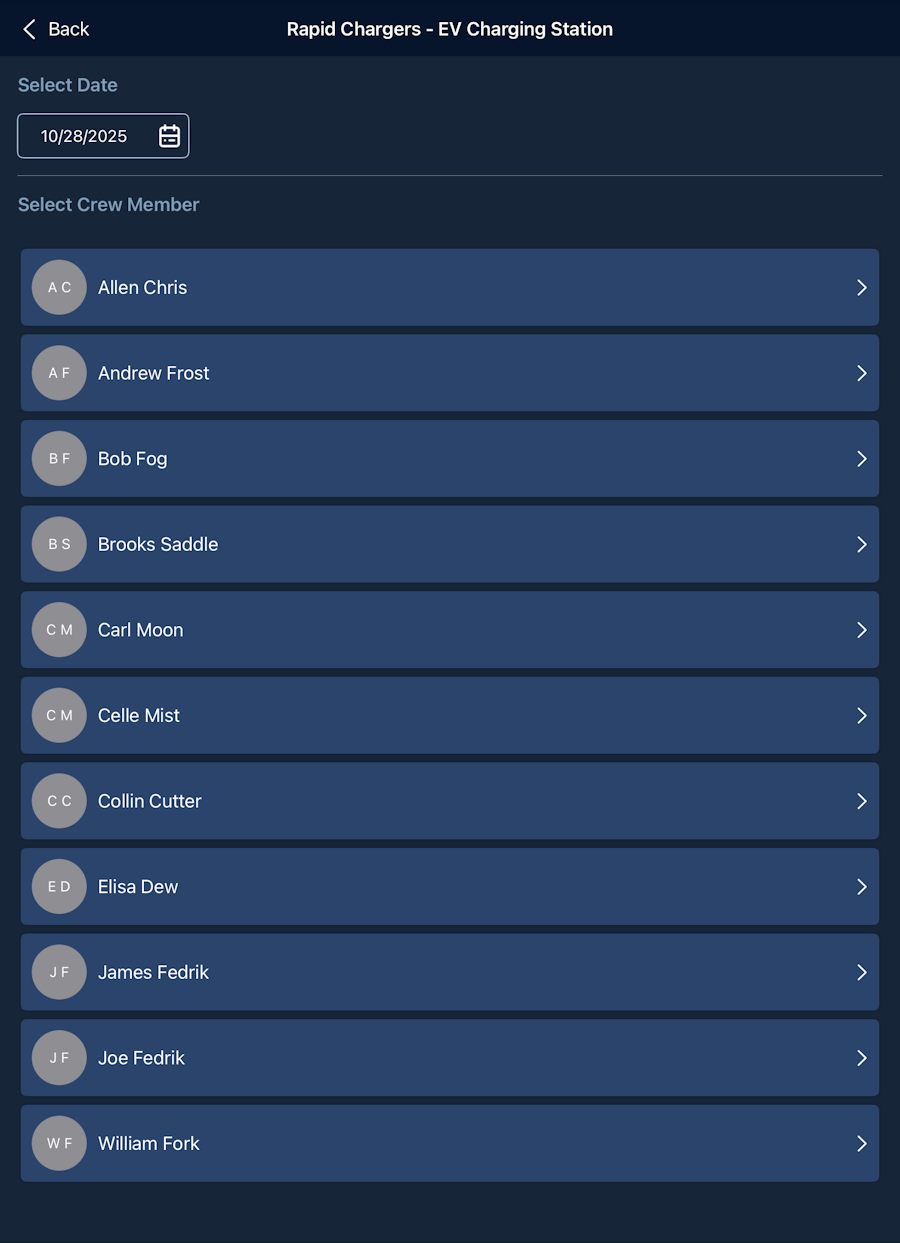
- Select the crew member to add time card entries.
- Tap the '+' button at the bottom right
- Enter the start time and end time for the first task
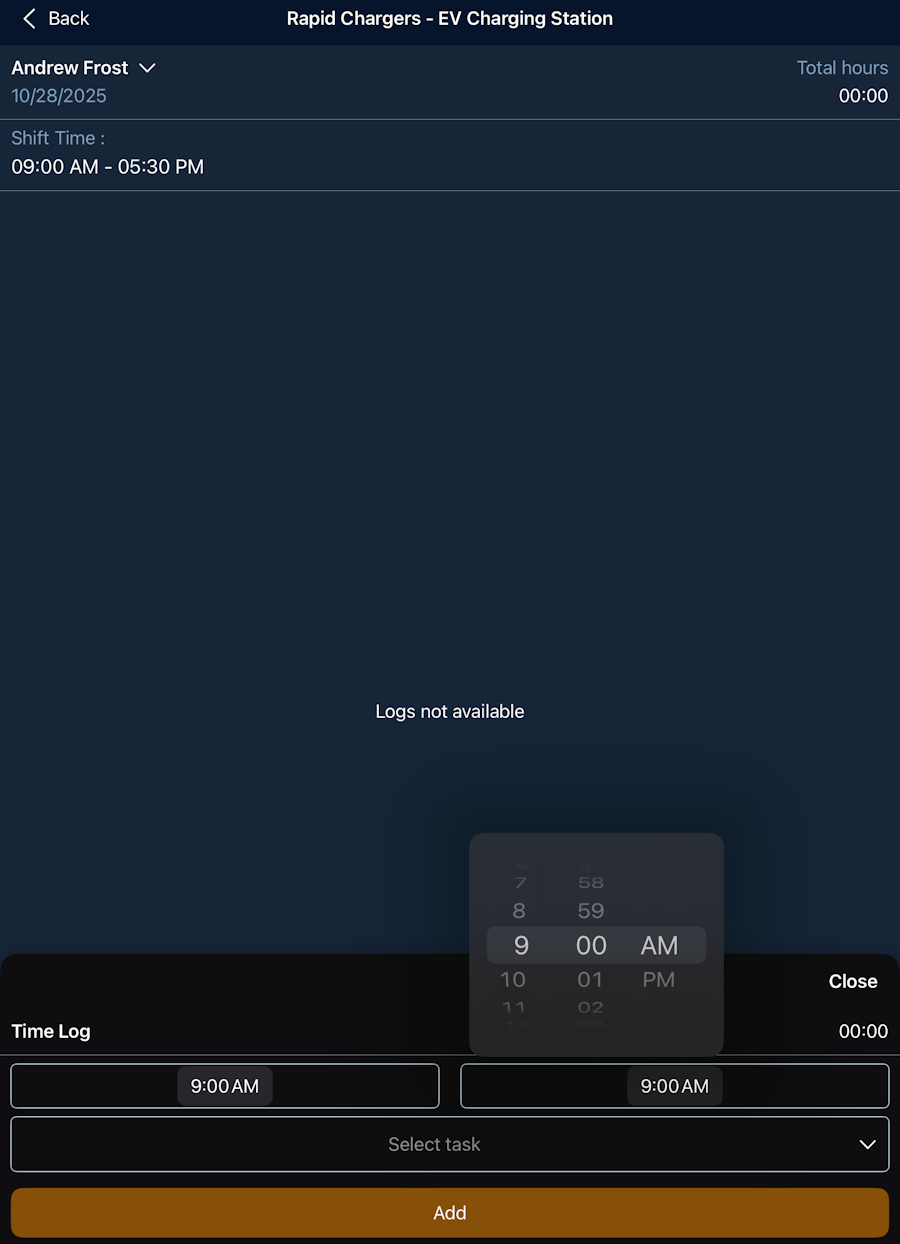
- Tap the 'Select Task' drop-down to open the list of tasks assigned to the crew member.
- There are two lists:
- Field Tasks - Pulled tasks assigned to the crew member
- System Tasks - Standard tasks and breaks, like short breaks, long breaks, driving, meetings, etc.
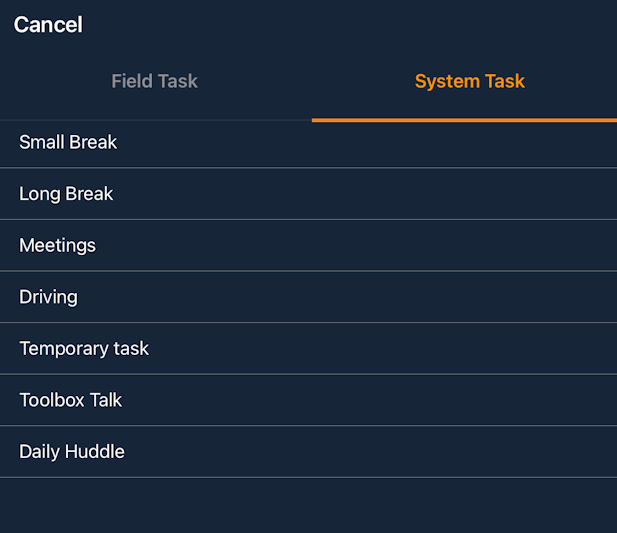
- Choose the task for which the time was spent
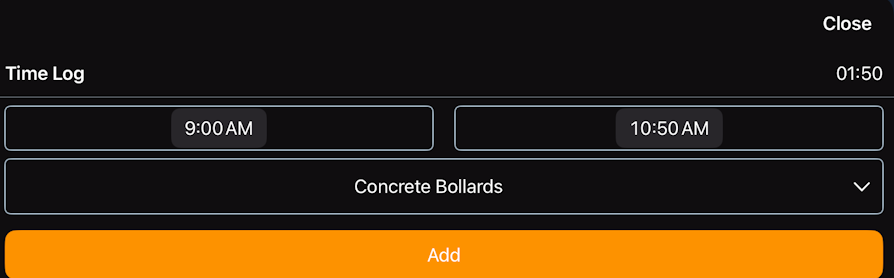
- Tap 'Add'
The time card entry is added for the worker.
- Repeat the process to specify the tasks worked on for the successive time slots till the end of the day
Note: The time card entries cannot be removed or edited once submitted.
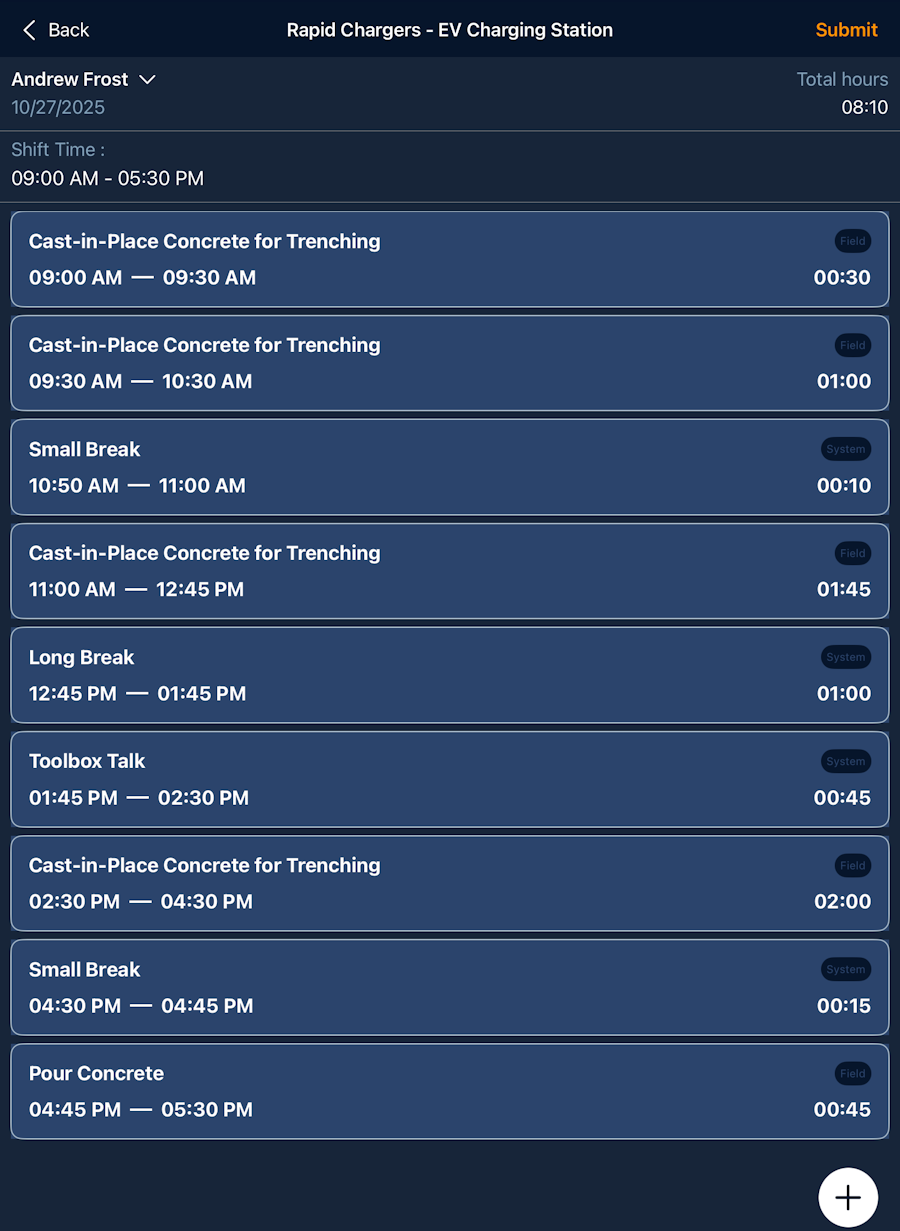
- Tap 'Submit' to save your entries
Edit task time
You can update or remove the already entered time cards before approving them. To edit the added time entries:
- Open the timecard by selecting the name of the crew member
- Tap on the time card entry that needs to be edited.
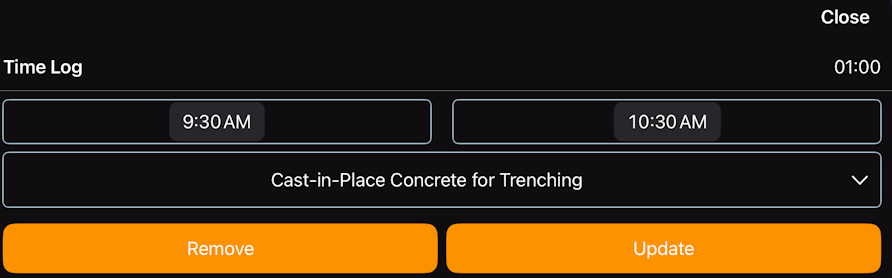
- Edit the time and task as required
- Tap 'Update'
Remove a task
- Open the timecard by selecting the name of the crew member
- Tap on the task that needs to be removed
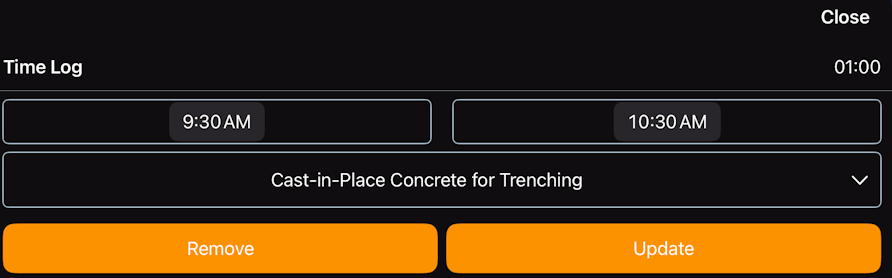
- Tap 'Remove'
Submit the timecard for approval
After completing the time entries for a crew member, you can post the timecard for approval.
- Tap the 'Submit' button on the top right
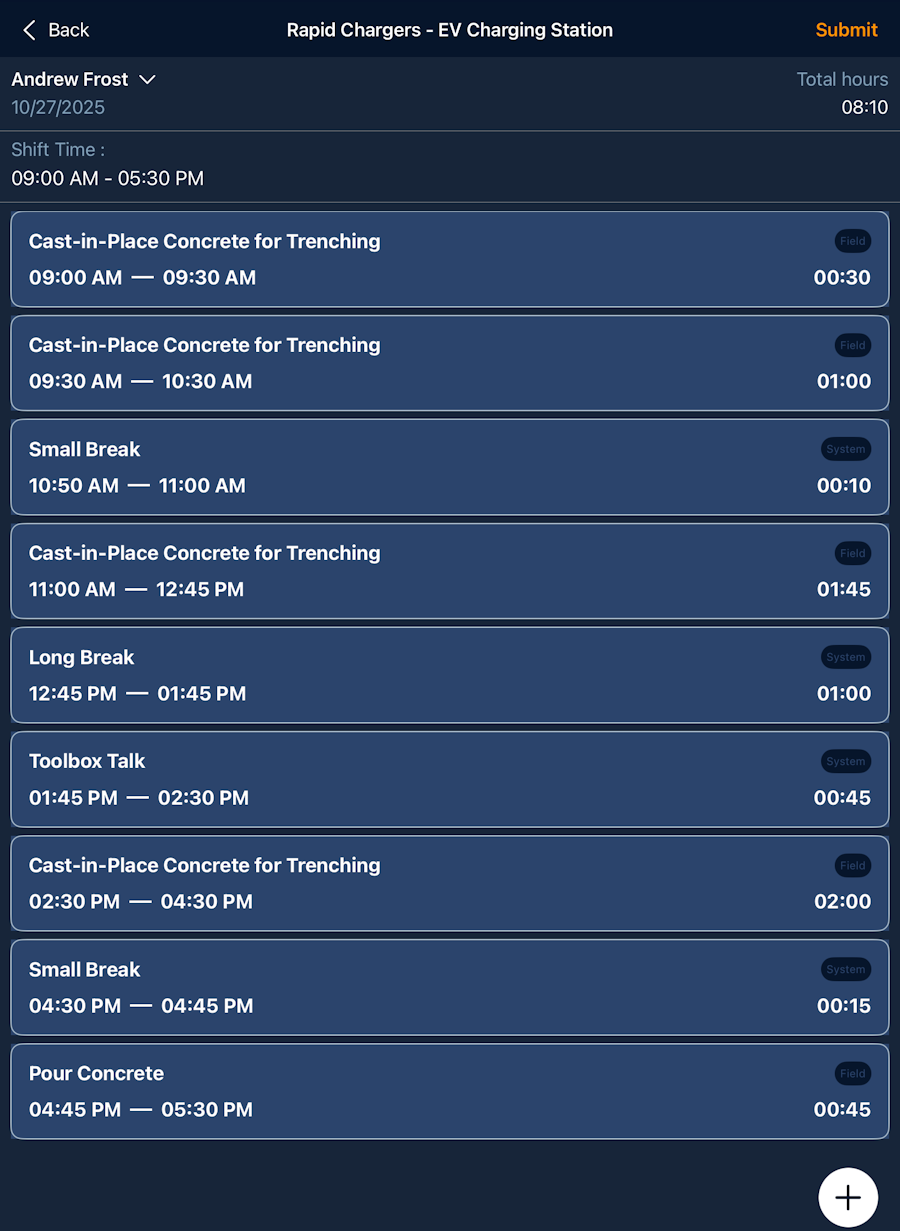
- Repeat the process to add time card entries for more crew members
Was this article helpful?
That’s Great!
Thank you for your feedback
Sorry! We couldn't be helpful
Thank you for your feedback
Feedback sent
We appreciate your effort and will try to fix the article