The general contractor has the authority to decide whether or not an RFI is to be forwarded to other collaborators for their clarification, depending on their context. For example, the GC can reject trivial RFIs, or those not requiring the other team's intervention. If required, the GC PM may use the built-in collaboration to clarify the queries by themselves.
- Only the team members with required permissions from the general contractor have the ability to reject the RFIs assigned to them.
- The PM can decide whether to forward an RFI to the architect or reject it based on their review.
- The rejected RFIs are automatically closed and notified to the participants.
Note:
- Stand-alone Project: A self-contained scope of work in Linarc managed entirely by a single contractor without the involvement of other subcontractors. The contractor is solely responsible for all planning, execution, costs, and deliverables.
- For standalone projects, workflows are managed through emails.
- If an RFI response from an external contractor needs to be rejected, you must communicate this directly through email to request further clarification before manually updating in Linarc.
- See Email an RFI to External Stakeholders for more details.
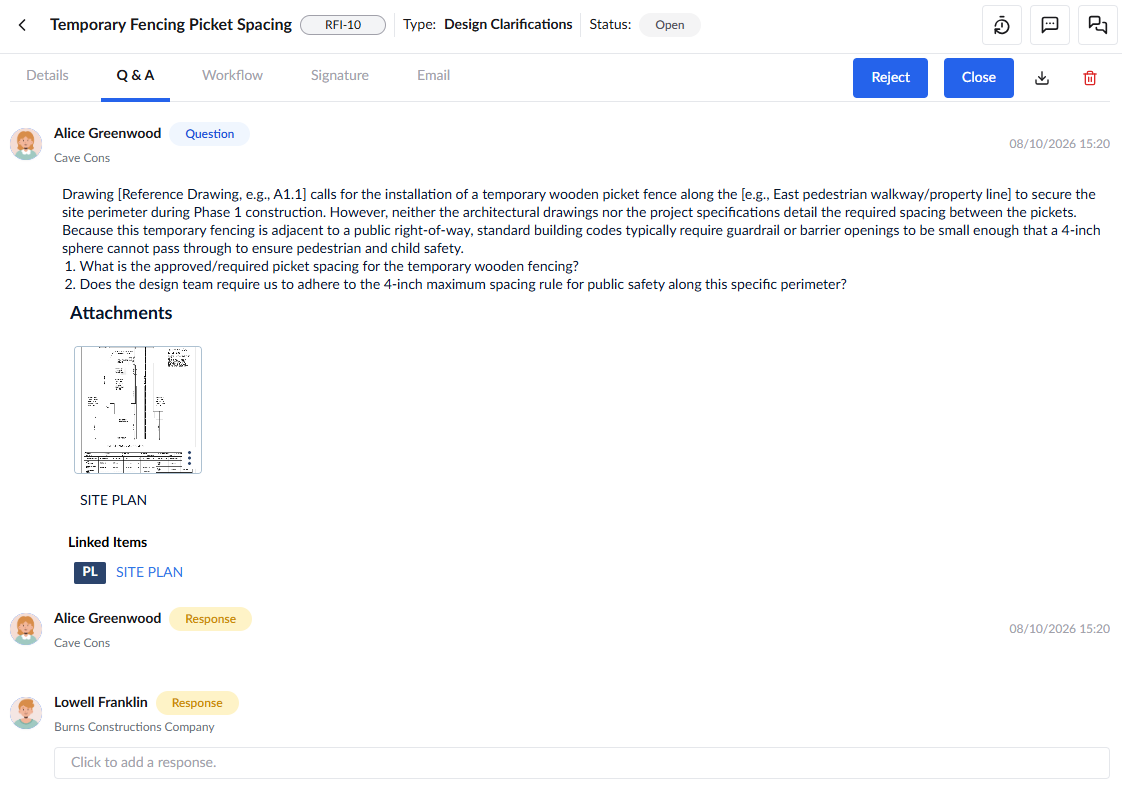
To reject an RFI
- Open and review an RFI as explained in the section 'Review an RFI.'
Note: You can provide your clarifications through the comment feature before rejecting an RFI for stakeholders in Linarc. Click the 'Comment icon' in the question or answer pane. Start typing your reason and save. The person responsible for the RFI can see the comments provided.
Add comment
If the RFI does not deserve to be forwarded to the architect/engineer, you can add the reasons in the comments:
- Enter your comment in the text box that appears. See Add Comments in Project Documents for more details.
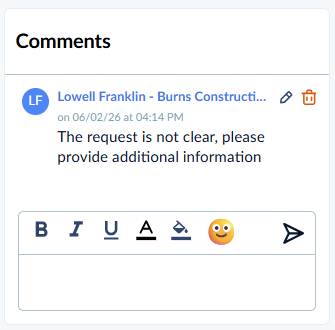
- Click 'Save'.
- Click the 'Pencil' icon at the right to edit the comment.
- Click the 'Delete' icon to delete the comment.
Your comment has been saved.
- Click the 'Reject' button on the top right.
The RFI is automatically closed. It moves to the 'Closed' column of the RFI interfaces of all participants with the status 'Rejected.'
All participants can view the details of the rejected RFI's from the Cancelled RFI List screen.
View the rejected RFIs
- Open the RFI module
- Click 'Cancelled' on the left
The screen shows the list of RFIs rejected by the GC.
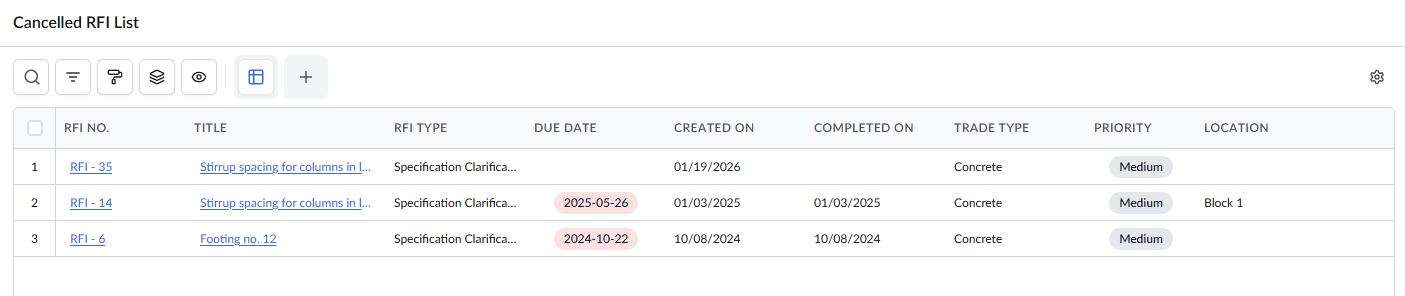
- Click the title of the RFI to view its details.
Tip: You can also use the in-built collaboration feature to discuss about the RFI. Click thebutton on the top right to start a chat session to respond to the queries. See Chat and collaborate on RFIs for more guidance.
Was this article helpful?
That’s Great!
Thank you for your feedback
Sorry! We couldn't be helpful
Thank you for your feedback
Feedback sent
We appreciate your effort and will try to fix the article