The general contractor is the hub for all subcontractors, architects, engineers, owners, and other parties involved in a construction project. Any communication between the parties can only be routed appropriately by the GC. Hence, it becomes GC's responsibility to duly forward an RFI from the creator to the responsible parties for processing by setting up a workflow, depending on the nature and context of the RFI.
Note:
- Stand-alone Project: A self-contained scope of work in Linarc managed entirely by a single contractor without the involvement of other subcontractors. The contractor is solely responsible for all planning, execution, costs, and deliverables.
- For standalone projects, in-app workflow sequences do not apply to external stakeholders.
- Instead of setting up successive workflow steps in Linarc , you will email the created RFI directly to external stakeholders and manually track the process based on your email correspondence. See Email an RFI to External Stakeholders for more details.
Once the workflow is set up, Linarc automatically moves the item to the respective companies in successive steps for their actions as per the workflow. See RFI - Workflow for more details.
This section explains how a GC PM can set up the primary workflow for an RFI.
By default,
- RFIs created by you - You can set up a workflow in the draft stage itself
- For RFIs created by office and field staff of your company, other than RFI workflow managers- The item is shown as 'Draft' on your RFI board. You can review, add comments, and set up a workflow for it.
- RFIs created by other stakeholders, like the owner, subcontractors, and architect - The item is automatically assigned to you for initial review and shown as 'Open' in the 'In Progress' column.
You can perform an initial review of the RFIs and move forward with setting up a workflow for legitimate ones.
- Approve - If the RFI deserves clarifications from other stakeholders, you can set up a workflow and forward it to the next step, typically to the design team. You can add your comments to the RFI, which are viewable by the stakeholders.
- Answer- Depending on the context, you can answer the questions in part or in full. You can still set up a workflow and forward the RFI to the responsible party for the responses.
- Reject - If you can answer the RFI through other communication means, like email, or if the RFI is trivial, you can reject the RFI after adding your comments to the questions. The rejected RFIs are automatically closed. See the next section, Reject an RFI, for guidance on declining an RFI.
To perform an initial review and set up a workflow
- Open the RFI if not already done. To do so:
- Click the main menu at the top-left
- Click 'RFI' under 'Documents' and click 'Boards' on the left
- Click on the RFI card (in board view) or the name (in the list view)
- Open the 'Q&A' tab
- Review the question
- Click on the text box on the bottom right in the comments pane to add your comments to the questions. See Add Comments in Project Documents for more details.
- If you can answer the questions in part or in full, click 'Add Answer' at the bottom and enter your responses. See Answer an RFI for more details.
- You can attach plan sheets, images, and/or link to other project documents like submittals to support your comments and answers.
- Open the 'Workflow' tab
The 'Workflow' tab lets you configure the stakeholder companies to whom the RFI should be routed at subsequent steps for review, response, and approval throughout its life cycle. You can also manually define the duration for each step to override the default durations inherited from the applied template.
- The drop-down at the left shows all available templates for you to choose from.
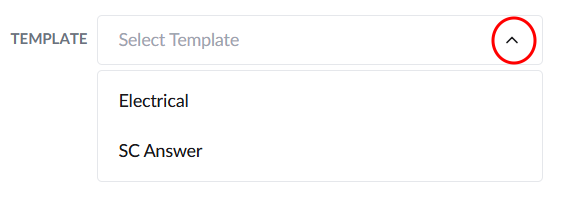
Tip: If the template you want to choose is anot available in the list, first add the template to the project. See Configure Workflow Templates for the Project Documents to learn more.
- Choose a template depending on the creator, the context, and the entities responsible for various actions on the RFI.
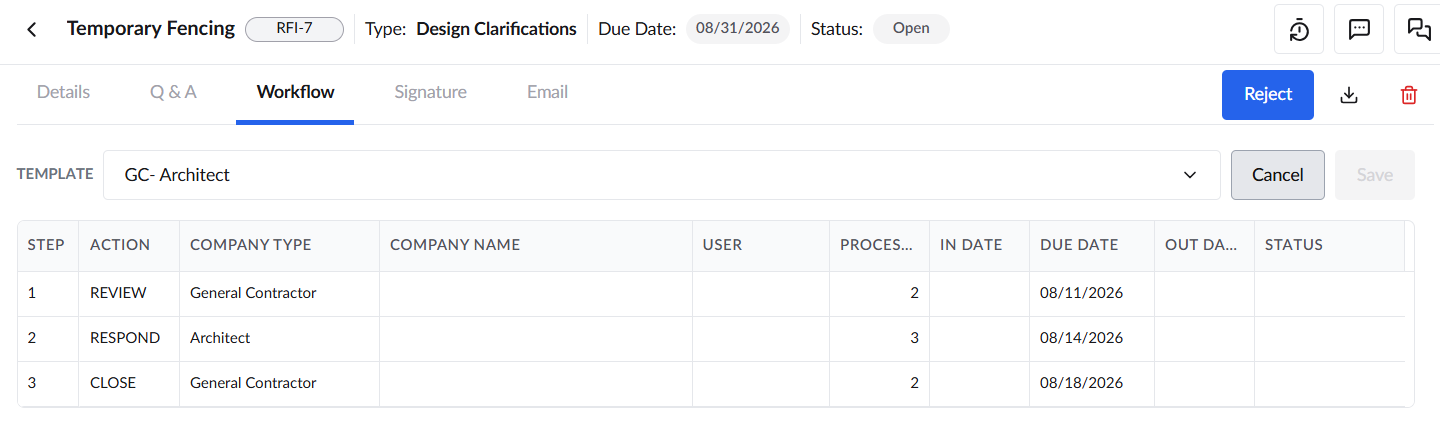
Once chosen, the actions and the responsible company types in the workflow template are shown as a list.
- Step - Serial numbers for each step are automatically populated upon saving and publishing the workflow. In cases where the 'Review' action is configured for parallel execution, the workflow table will display a unique row for each assignee, all sharing the same serial number to indicate they occur simultaneously.
- Action - The activity involved in that step. This can be 'respond,' 'review,' 'close,' etc., per the chosen template.
- Company Type- The role of the collaborating company in the project responsible for the respective step. This can be the owner, general contractor, subcontractor, architect, etc.
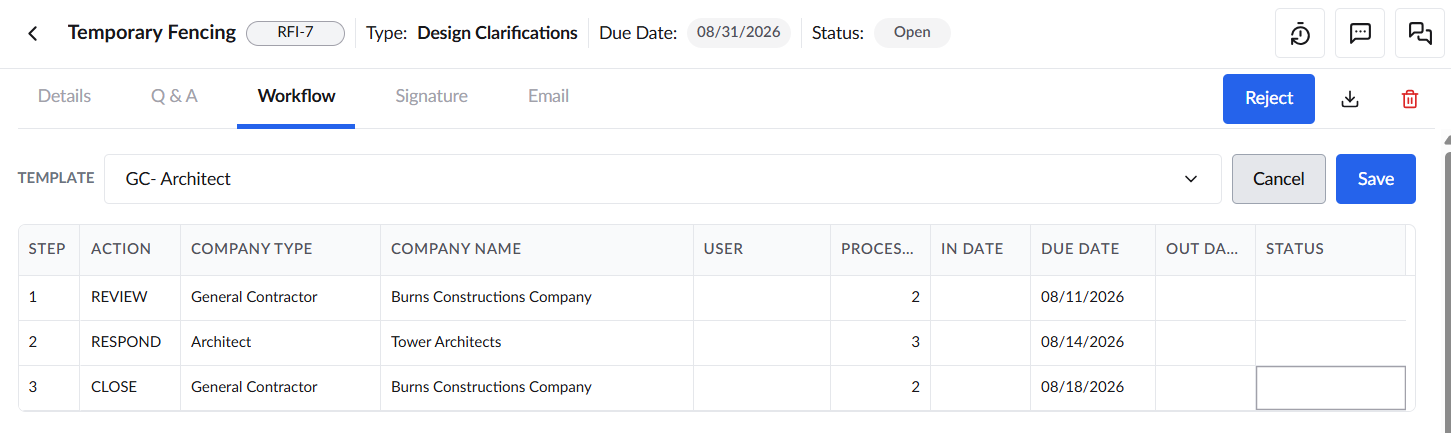
- Company Name- The business name of the company. You can choose the company for each step from the respective drop-downs. Any team member from the company with the required permissions can perform the action.
- Click inside the 'Company Name' field and choose the company from the options.
For 'Review' steps designated as parallel, specify the stakeholders required for simultaneous review. Upon completion of the preceding step, Linarc automatically routes the RFI to all selected companies concurrently. The workflow advances to the next stage only after every assigned party has completed their action, ensuring all feedback is captured before proceeding.
- Process days- The default days allowed for the step as defined in the template. You can manually edit them as required. The 'Due Date' for each step auto-updates depending on the set process days.
- Double-click inside the 'Process Days' field to manually enter the number of days
- Received Date - The date on which the RFI was received for the action from the previous step.
- In Date - The date on which the RFI was received for the action from the previous step
- Due Date - The target completion date of the activity. The date is auto-populated based on the completion date of the previous step and the allowed process days of the current step, excluding weekends and holidays.
- Out Date - The date on which the action was completed.
- Status - Whether the action is complete, pending, or in processing.
- Click 'Save' to apply the workflow to the RFI.
The first two steps of 'Create' and initial 'Review' get automatically added.
- Click the 'Edit Workflow' button to change the assignee companies and/or the process days, if required. You cannot add or remove steps or change the sequence of actions by editing.
- Click the
 at the top right to forward it to the next step
You can view the status of an RFI in its workflow at any time by clicking the 'Workflow' tab.
Add Watchers (Optional)
The 'Watchers' pane allows you to specify your team members to notify them of the RFI progress and details. Linarc sends a notification to the persons on each activity on the RFI. If given access, they can view the details at each step from their Linarc project consoles.
To add watchers to an RFI
- Ensure that you are in the 'Details' or 'Workflow' tab
- Start typing the name of the person in the text box under 'Watchers' and choose from the options
- Click the 'Add' button
- Repeat the process to add more watchers
See Add and Manage Watchers for more guidance on adding watchers.
Edit Workflow
The general contractor can make changes to the current step and the following steps in the workflow before routing it to the next step.
- You cannot add or remove steps from the primary workflow.
- You cannot change the company type assigned to each step in the primary workflow, but you can replace the currently assigned company with another of the same type. For example, if the company type specified in a step is 'Subcontractor,' you can change the company from Company A to Company B in the 'Company Name' column.
- You can change the number of days allotted for the step as per the primary workflow.
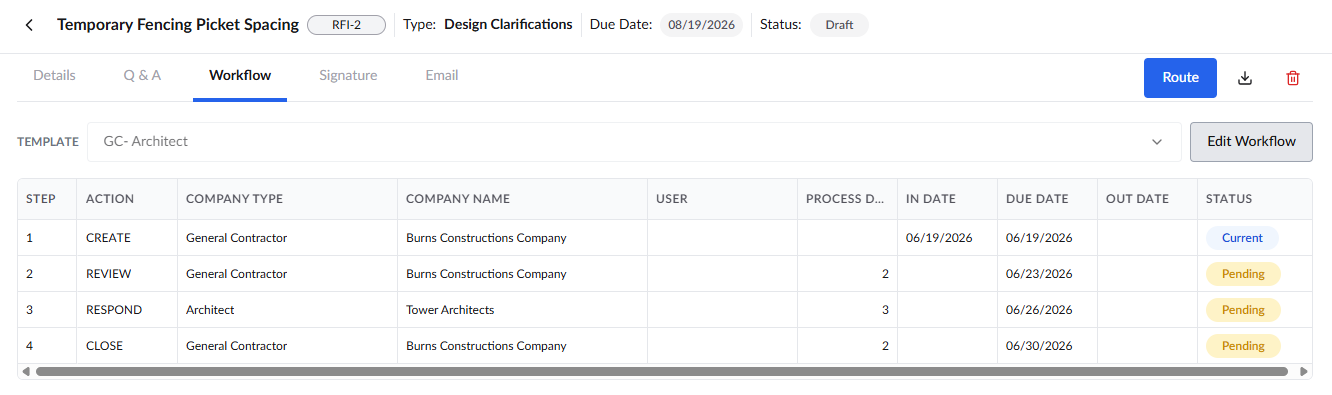
To edit the workflow
- Click 'Edit Workflow'
- Click inside the 'Company Name' column of any of the pending steps and choose the company from the drop-down
- Double-click inside the 'Process Days' cell of the respective row and change the value
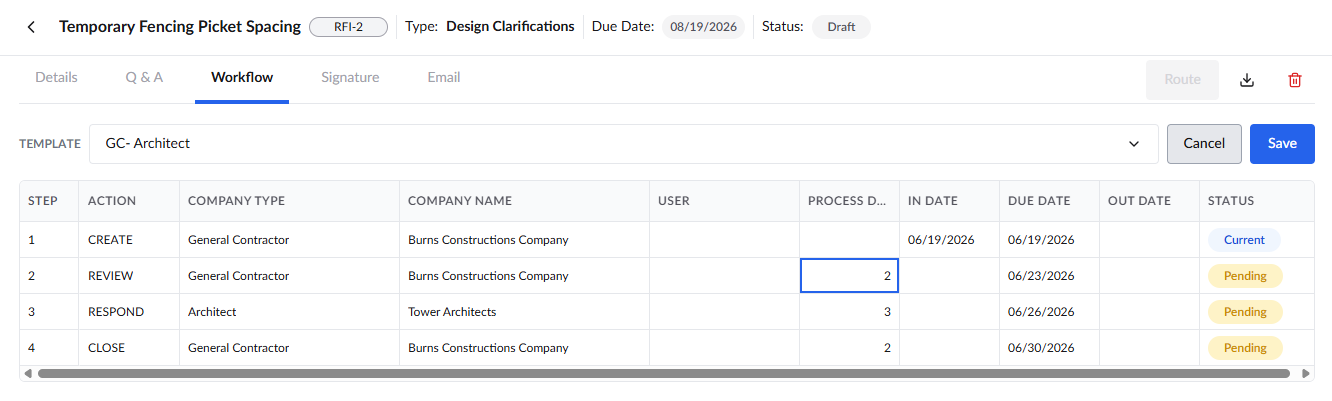
- Click 'Save' for your changes to take effect
Was this article helpful?
That’s Great!
Thank you for your feedback
Sorry! We couldn't be helpful
Thank you for your feedback
Feedback sent
We appreciate your effort and will try to fix the article