Linarc’s built-in AI analyzes uploaded PDF spec books to automatically identify and extract required submittals, such as shop drawings, product data, and material samples across all project divisions. The system assigns a confidence rating to each extracted item, allowing project managers to prioritize their review. You can review, adjust, and approve these entries before organizing them into submittal packages for subcontractors.
You can extract submittals from an already existing spec book or upload the a new spec book to identify potential submittals. See Upload the Spec Book for details on uploading a specbook.
Use the following links to jump to the sections:
- View Extracted Entries
- Review and Edit Submittal Details
- Approve Submittal Entries
- Reject Submittal Entries
- Generate Approved Submittals
View Extracted Entries
Ensure that you are in the 'SpecBook' screen. If not,
Click the main menu at the top
Select 'Specbook' under the 'Documentation' menu
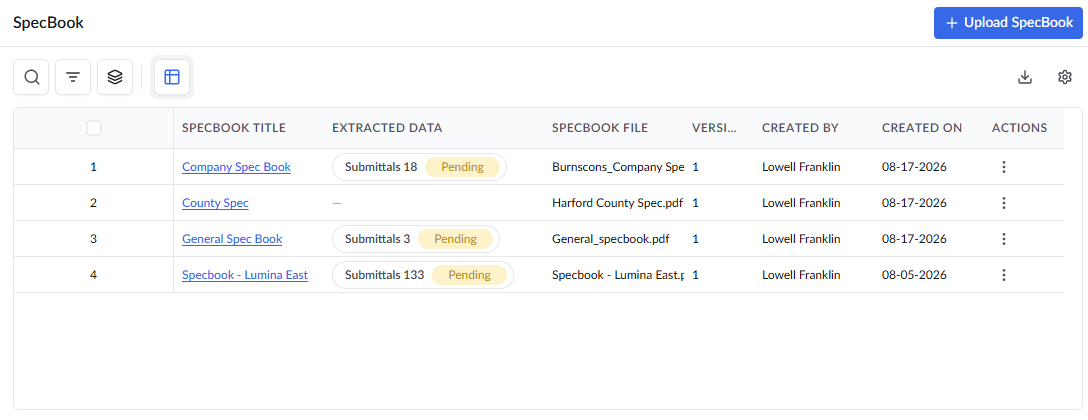
Locate the desired specbook and click the three dots menu
Select 'AI Extraction' from the options to review the AI extracted Submittals from the specbook
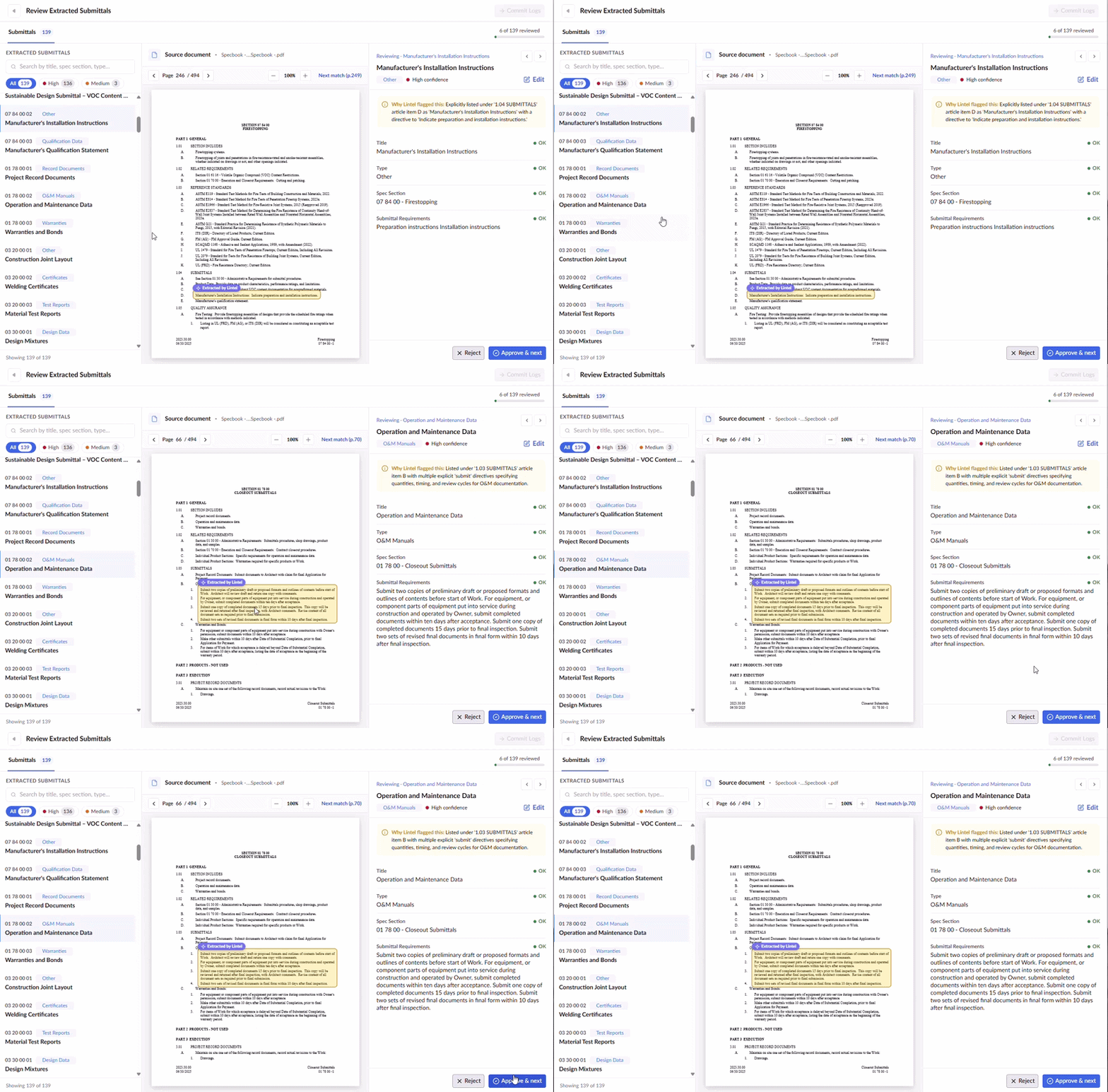
The review interface is divided into functional areas:
- Left Pane -Organizes the potential submittal entries by their extraction confidence level to help prioritize your review.
- Use the search bar at the top to find submittal items by tittle, specification or type
- Use the confidence level tags to filter the list accordingly
- Click a specific record to open details in a split screen. The original spec book with highlighted source text is displayed alongside the extracted field data.
- Middle Pane (Source Document) - A built-in PDF viewer that highlights the exact source text.
- Right Pane (Review Details) - Displays the extracted data fields, including Title, Type, Spec Section, and Submittal Requirements alongside a brief explanation at the top detailing why the AI identified it as a submittal item.
Select a record from the left pane to review the auto-filled details on the right
From this screen you can perform the following actions:
- View Extracted Entries
- Review and Edit Submittal Details
- Approve Submittal Entries
- Reject Submittal Entries
- Generate Approved Submittals
Review and Edit Submittal Details
You can verify the extracted data in the right pane, review the auto-filled fields, which include the Title, Type, Spec Section, and Submittal Requirements. If the AI-extracted information needs adjustment,
- Click the 'Edit' button located at the top right of the details pane and modify the fields as necessary

- Click 'Approve & next' to save and approve the submittals
Approve Submittal Entries
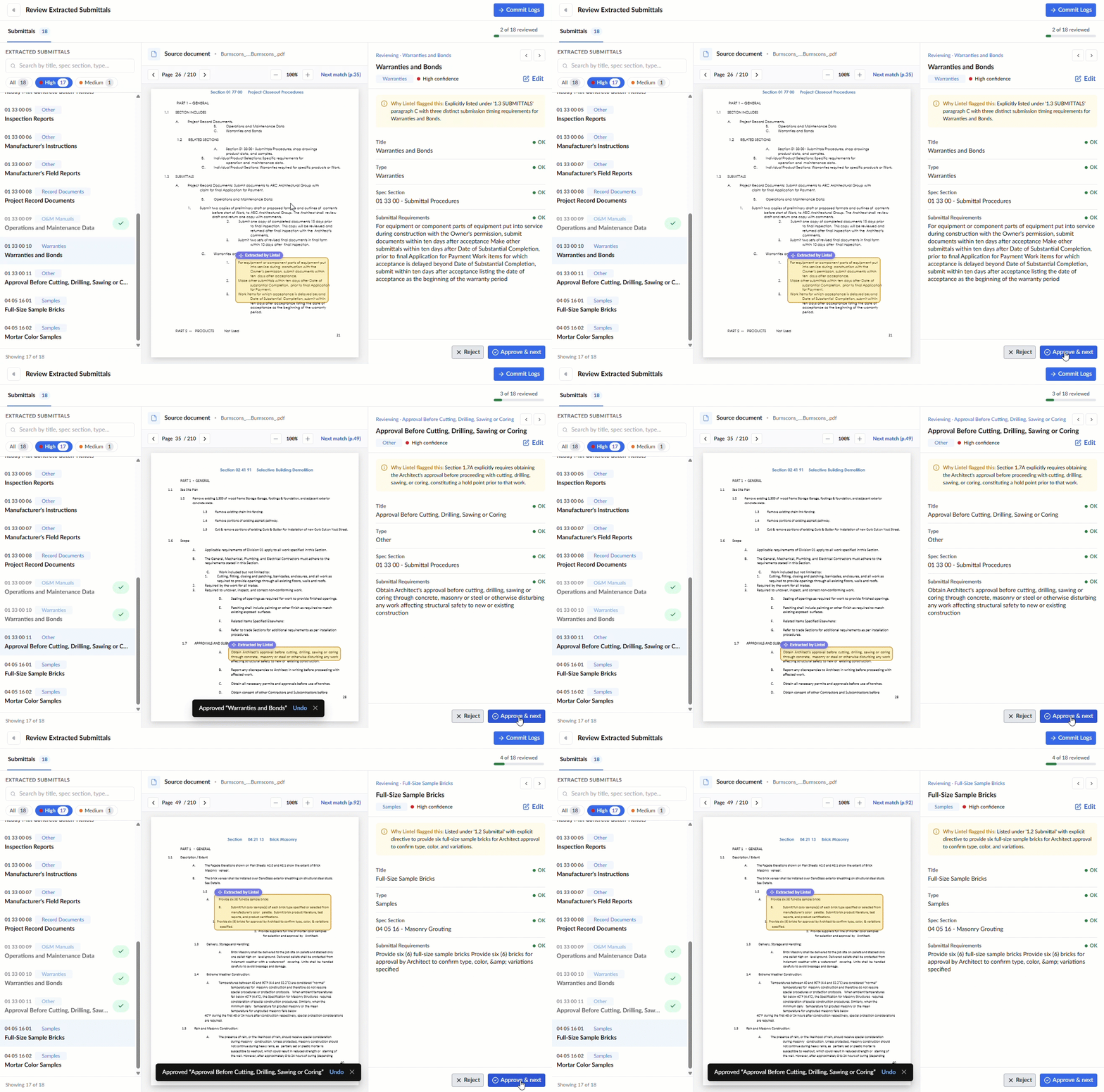
Once you are satisfied that the submittal details are accurate, you can approve the current record and automatically load the next item in the list for review. You can also review the other records later and skip to submittal generation directly.
- Click 'Approve & next' at the bottom of the screen
Reject Submittal Entries
If the AI incorrectly flagged an item, or if you do not need that entry, you can reject them. Once rejected, you can still see their details in view only option.
- Click the 'Reject' button to discard the entry
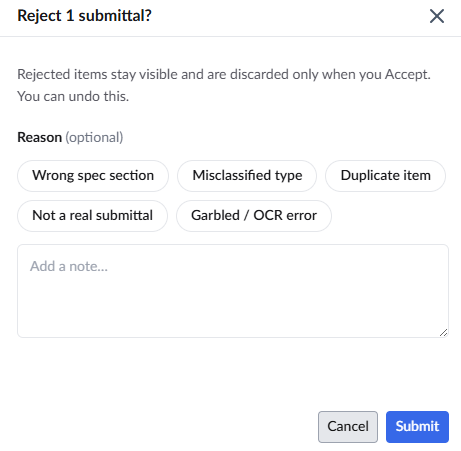
- Select a specific Reason for the rejection
- Click 'Submit' to finalize the rejection
Generate Approved Submittals
After reviewing all entries, you can generate the active submittals. They will automatically be sorted into existing packages or you can place into newly created ones as needed. If no package exists for that particular trade—it will automatically create a new package and assign the submittal to it.
- Click to commit the log

Append into the Existing Package
If any of your approved submittals belong to spec sections that are already active in your project, you can either append them to the existing package or create a new one.

- Append into the existing package: Select this option if you want the newly extracted submittals to join the packages that have already been created for each matching section.
Create a new package: Select this option if you prefer to create a fresh package for these sections, keeping them completely separate from the existing ones.

Once committed, your submittal records become active in the project. You can access them at any time from the Boards or Logs view. From these views, you can assign the submittals to subcontractors, collect responses, and initiate the formal review and approval workflows. See for Add and Manage Submittals more details.
Was this article helpful?
That’s Great!
Thank you for your feedback
Sorry! We couldn't be helpful
Thank you for your feedback
Feedback sent
We appreciate your effort and will try to fix the article