The general contractor or architect creates the project spec book in PDF format and uploads it to the project. The PDF file is shared and available to other project collaborators on their project portal. The built-in PDF viewer allows all collaborators to access the project management console to view the spec book at any time.
- The module accepts the spec book only in PDF format.
- You can upload multiple spec books for a project, for example, spec books that are created for different divisions of work
- The viewer can open the spec book only in read-only mode and cannot make any changes
- The viewer can also create split books by extracting required section from the book
Automated AI Submittal Extraction: Upon upload, built-in AI automatically reads the spec book and extracts potential submittals for quick review and management. See Generate Submittals from Specbook using AI for more details.
Use the following links to jump to the sections you need help with:
Upload a Spec Book
- Ensure that you are in the 'Spec Book' module of the project. If not,
- the main menu at the top-left
- Click 'Spec Book' under 'Documents'
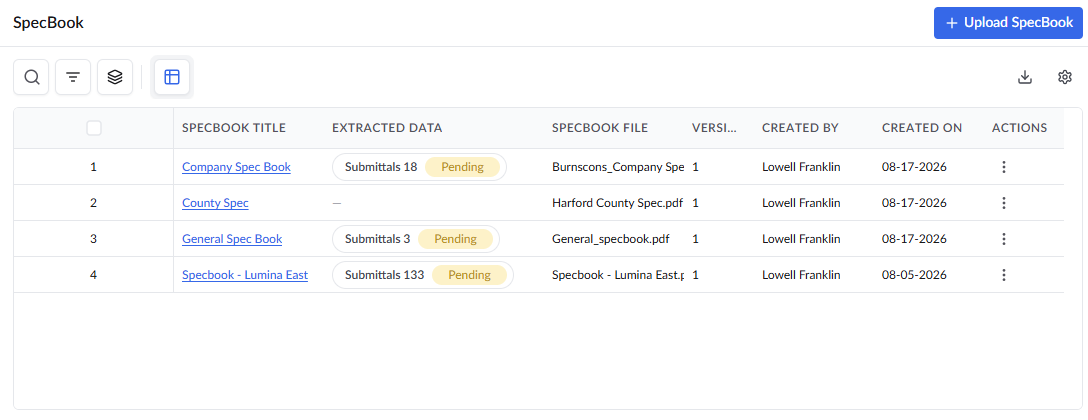
Standard Columns:
- Spec Book Title - A unique title to identify the spec book
- Extracted Data - Displays the review status of the AI-extracted submittals from the spec book, with the number of pending submittals that still need to be reviewed.
- Spec Book File - The name of the spec book file uploaded
- Version - The version number of the spec book
- Created By -The name of the project manager who uploaded the spec book
- Created On - The date on which the version was uploaded
- Actions-Provides three options to manage the spec book. Click the three dots menu and select from the following options:
- PDF Viewer - View the original PDF of the spec book,
- AI Extraction - View and manage AI extracted submittals from the spec book
- Delete - Delete the spec book from the project
- Click the
 button at the top right
The 'Upload Spec Book' pop-up appears:
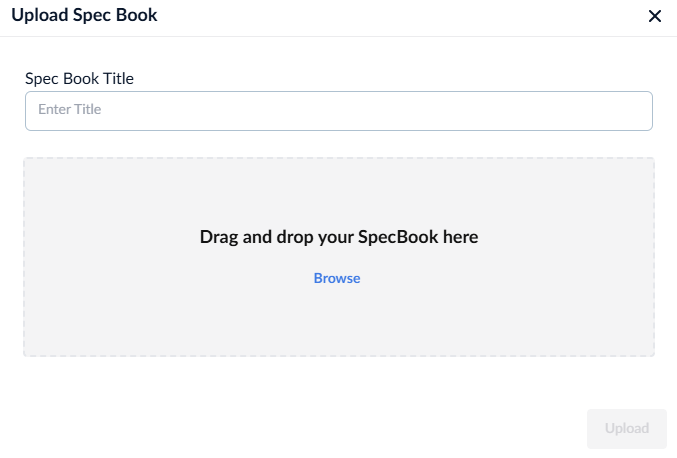
- Spec book title - Enter a title to identify the spec book
- Drag and drop the Spec Book PDF file you want to upload to the 'Upload Spec Book' pop-up.
- Alternatively, click inside the pop-up, navigate to the file you want to upload, and select it.
- Click 'Upload'
Once your spec book is uploaded, Linarc's built-in AI automatically scans the document and extracts potential submittals. You can review and manage these submittals at any time. See Generate Submittals from Specbook using AI for more details
Delete a Spec Book
Locate the spec book you want to delete from the list on the Spec Book screen.
Click the three dots menu.
- Select 'Delete' from the dropdown options.

- Click 'Continue' and confirm your action.
Was this article helpful?
That’s Great!
Thank you for your feedback
Sorry! We couldn't be helpful
Thank you for your feedback
Feedback sent
We appreciate your effort and will try to fix the article