You can reset an employee’s password on their behalf. You can use this option if the employee has forgotten their password or is unable to access their account. After resetting the password, provide the employee with the updated login credentials promptly to restore their access. For security reasons, instruct the employee to change the temporary password immediately after logging in.
To change the password of an employee
- Ensure you are in the 'Active Employees' screen of your company management console. If not,
- Click 'Employees' at the top and 'Active' on the left
The list of current employees is displayed in the table:
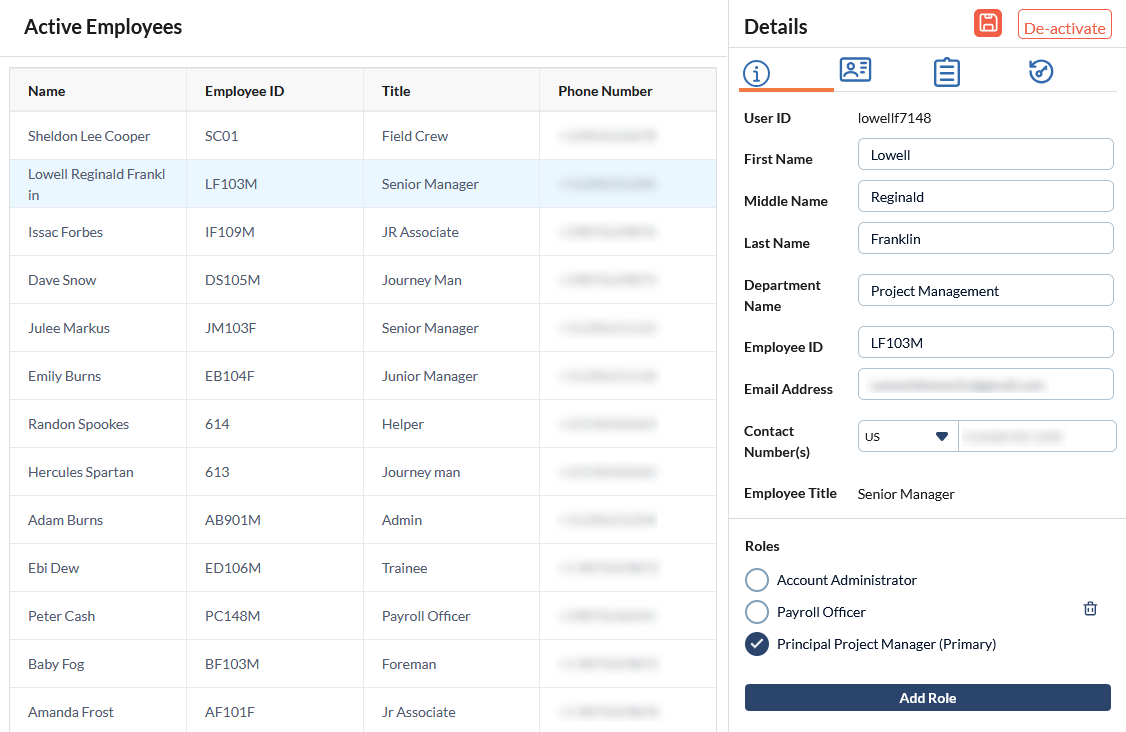
- Click an employee's name to open their details in the right pane.
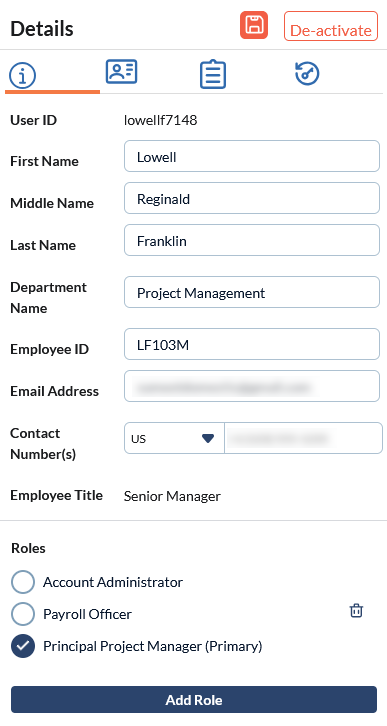
- Click the
 icon on the details pane
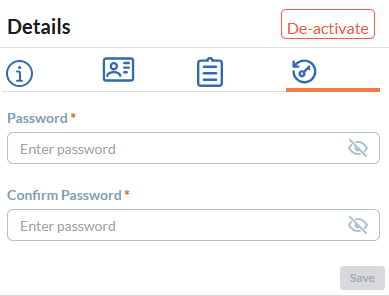
- Enter the new password
- Use the eye icon to view the password
- Confirm the new password by entering it again
- Click the
 button
Securely share the new password with the employee using an out-of-band communication method (such as a direct phone call or text message).
Was this article helpful?
That’s Great!
Thank you for your feedback
Sorry! We couldn't be helpful
Thank you for your feedback
Feedback sent
We appreciate your effort and will try to fix the article