If your integration was previously disconnected, you can easily reconnect it from the Admin Portal when you are ready to resume data synchronization between Linarc and QuickBooks Desktop. Reconnecting reactivates communication between both platforms, generates a fresh authentication password, and preserves all your existing account mappings.
- Regenerate Password: Reconnecting generates a new 16-character password that must be updated in QuickBooks Web Connector (QBWC).
- Post-Reconnection Sync: Any records created or edited while disconnected will automatically sync during subsequent Web Connector polls if 'Auto-Create' and 'Auto-Update' are enabled. If disabled, records can be pushed manually through the Linarc Staging Platform.
- Settings Preserved: All account mappings and object configuration preferences remain intact—you do not need to reconfigure field mappings.
Reconnect QBD
- Ensure you are logged in to the Linarc Admin Portal.
- Click 'Integrations' at the top menu and select 'ERP' from the left navigation pane.
- Click 'Manage' (or 'Connect') on the 'QuickBooks Desktop' card.
- Click 'Connect QBD'. The Admin Portal will reactivate the connection and generate a new 16-character password.
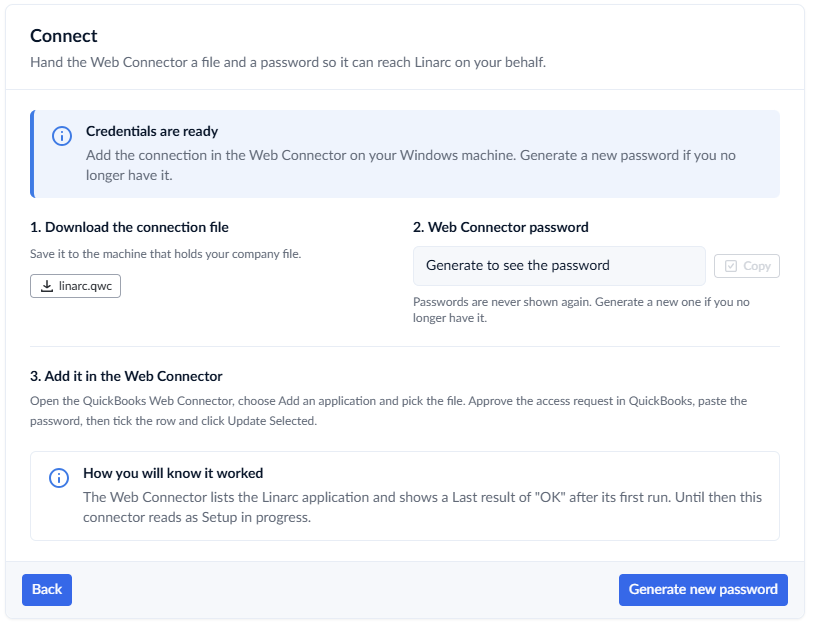
- Copy the newly generated password and run an on-demand sync from QuickBooks Web Connector.
To run on-demand sync and verify connection
- Ensure that your company file is open in your QuickBooks Desktop.
- Open QuickBooks Web Connector
- Paste the new password into the Password field on the Linarc row, press Enter, and click 'Yes' when prompted to save the password
- Select the Linarc row and click 'Update Selected' to run an on-demand poll and verify that the connection status returns to Verified / OK.
See Perform On-demand Polling from QuickBooks Web Connector for more details.
Was this article helpful?
That’s Great!
Thank you for your feedback
Sorry! We couldn't be helpful
Thank you for your feedback
Feedback sent
We appreciate your effort and will try to fix the article