The QuickBooks Web Connector is a free Intuit utility that enables secure data sync between Linarc and QuickBooks Desktop. Running in the background on the same Windows machine as QuickBooks, it polls Linarc on a schedule to exchange data—ensuring your QuickBooks application is never directly exposed to the internet.
Prerequisites & Setup Steps:
- Close QuickBooks Desktop: Ensure the QuickBooks Desktop application is completely closed before starting.
- Download the Installer: Visit the Intuit Developer portal to download the latest QuickBooks Web Connector .zip file to your local drive.
- Run as Administrator: Extract the downloaded file, right-click QBWebConnectorInstaller.exe, and select 'Run as Administrator' to launch the setup wizard.
Step 1
The setup program starts automatically and the Welcome Screen will be displayed.
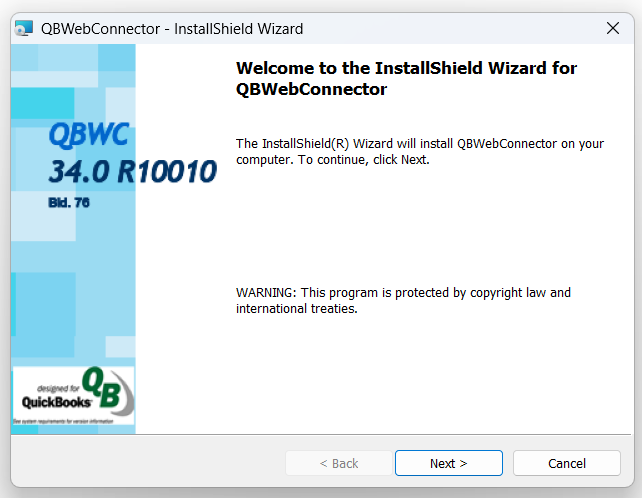
- Click 'Next' to continue
Step 2 - End User License Agreement
Complete the initialization phase by reading and accepting the EULA.
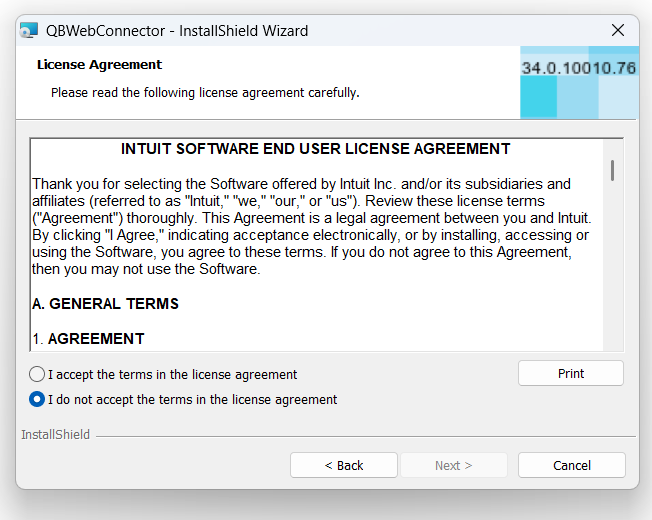
- Click 'I accept the terms in the license agreement' and click 'Next'
Step 3 - Ready to Install
The 'Ready to Install the Program' screen will be displayed.
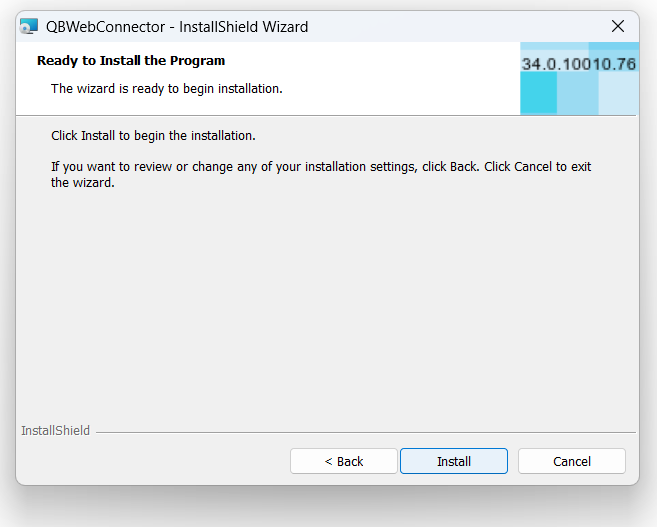
- Click 'Install' to continue installation.
If you want to review or change any of your installation settings, click 'Back'. Click 'Cancel' to exit the wizard.
Step 4 - Installation Progress
A setup status dialog box shows a progress bar indicating that the files are being installed, and upon completion, the completion dialog will be displayed.
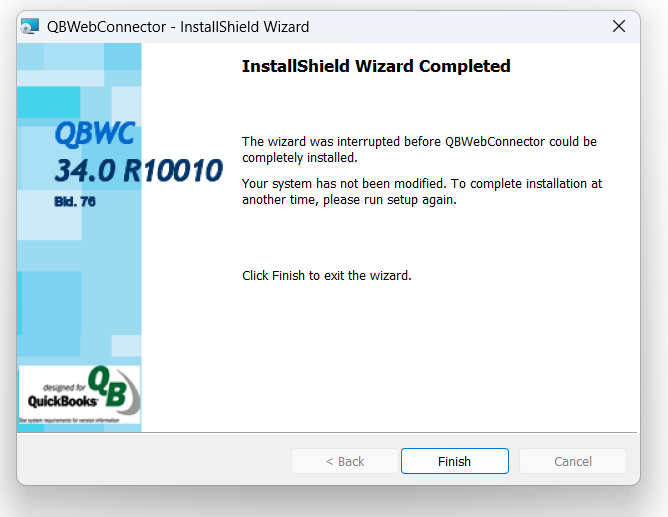
- Click the 'Finish' button to exit the wizard.
Next: Connect Linarc to QuickBooks Desktop
Was this article helpful?
That’s Great!
Thank you for your feedback
Sorry! We couldn't be helpful
Thank you for your feedback
Feedback sent
We appreciate your effort and will try to fix the article