Progress Override Logic - View Critical Path

Modified on Mon, 11 May at 7:30 AM

The Progress Override method calculates the critical path based on actual field progress rather than strictly enforcing the original task dependency relationships. This method allows the schedule to adapt dynamically when activities are performed out of sequence during project execution on the field.

  • Field-Driven Calculation: Actual progress takes precedence over the originally planned task logic.
  • Out-of-Sequence Adaptability: If successor activities have already started, the calculation bypasses the original dependency restrictions for the remaining work.
  • Realistic Forecasting: Remaining activities are recalculated from the current status date, allowing the schedule to reflect actual site conditions more accurately.

This method is commonly used for fast-track projects, overlapping activities, dynamic construction environments, or projects where frequent resequencing is expected during execution.

  • Depending on the project schedule and task relationships, the system may identify more than one critical path within the project. 
  • You can recalculate the critical path at any time after schedule updates, task additions, or progress changes to ensure the latest project conditions are reflected in the analysis.

To calculate critical path by retained logic

  • Ensure that you are in the 'Schedule' module of the project management console. If not,
    • Open the management console for the project
    • Click the app launcher and select 'Schedule'
    • Click 'Planner' at the top and 'Grid' on the left
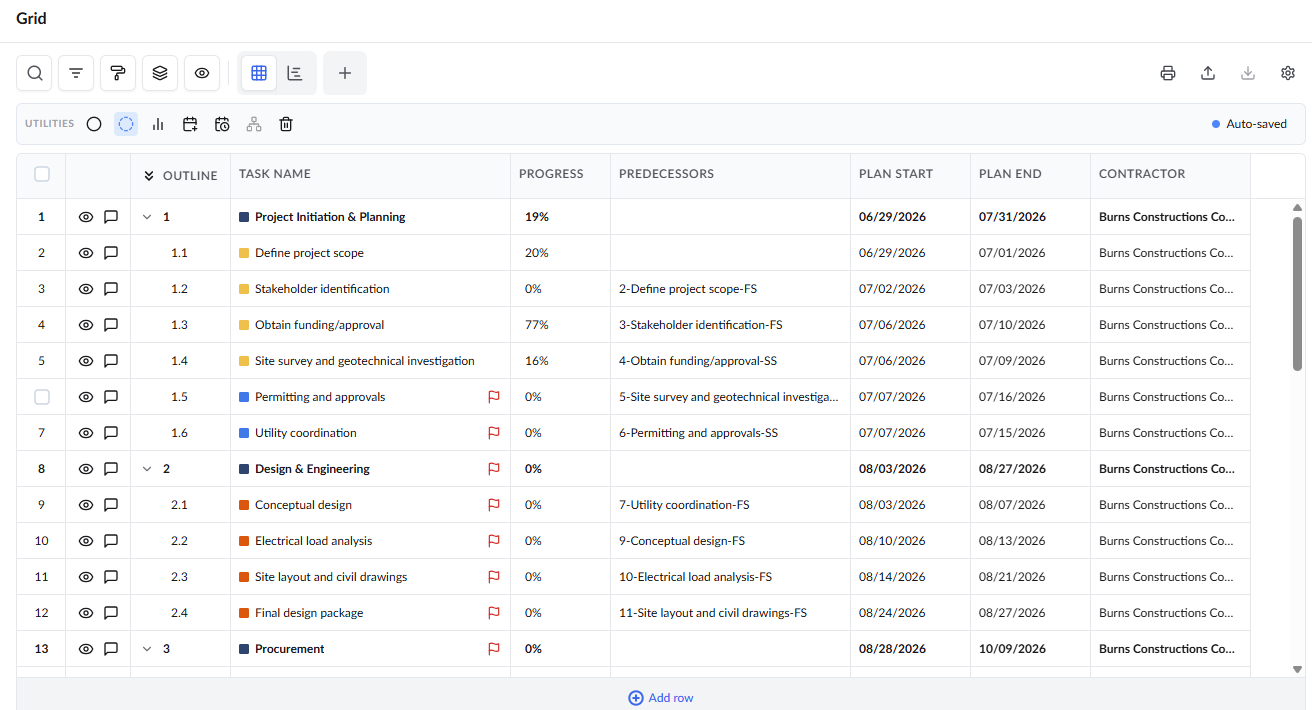
  • Clickicon from the tool bar at the top

The system calculates the critical path using current task progress and actual execution status.
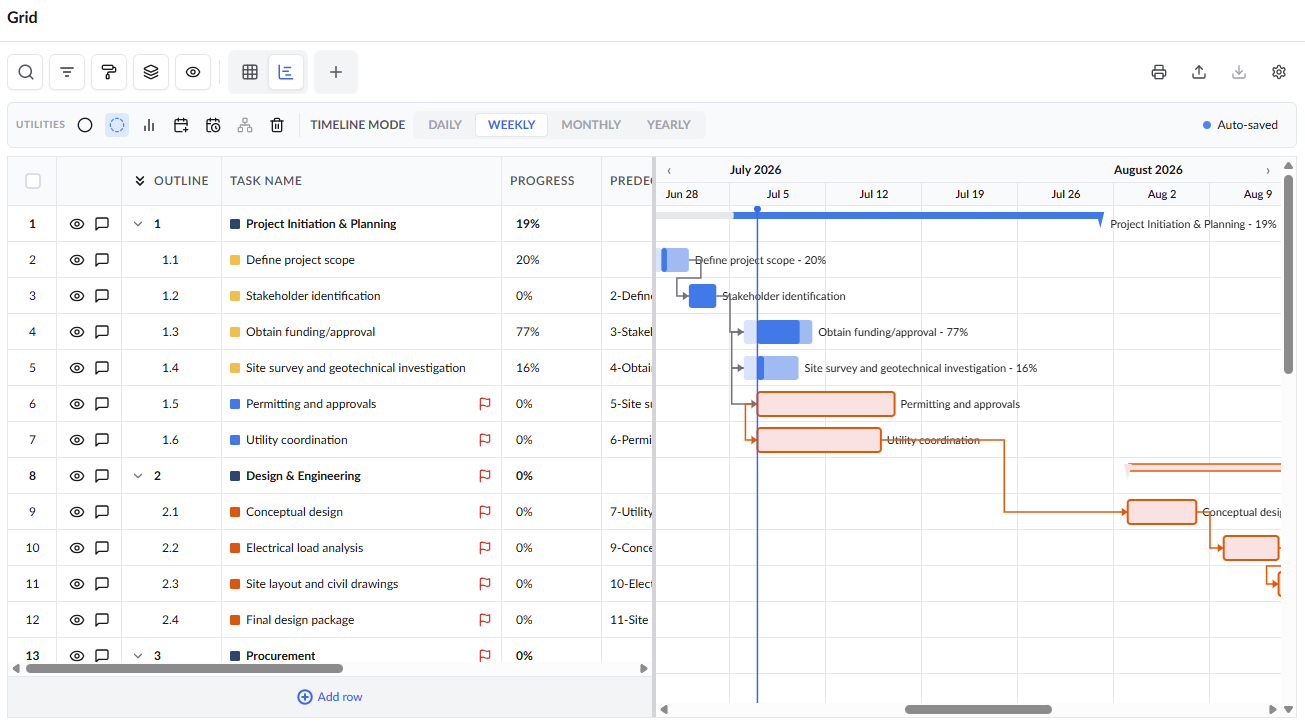
View Critical Tasks in the Grid View

The critical tasks are identified with the icon on their left.

  • Click theicon to switch the view to other critical path, if the schedule has more than one critical path.
  • Scheduling parameters including Early Start (ES), Early Finish (EF), Late Start (LS), Late Finish (LF), and Slack/Float are automatically calculated and displayed in the Grid View.

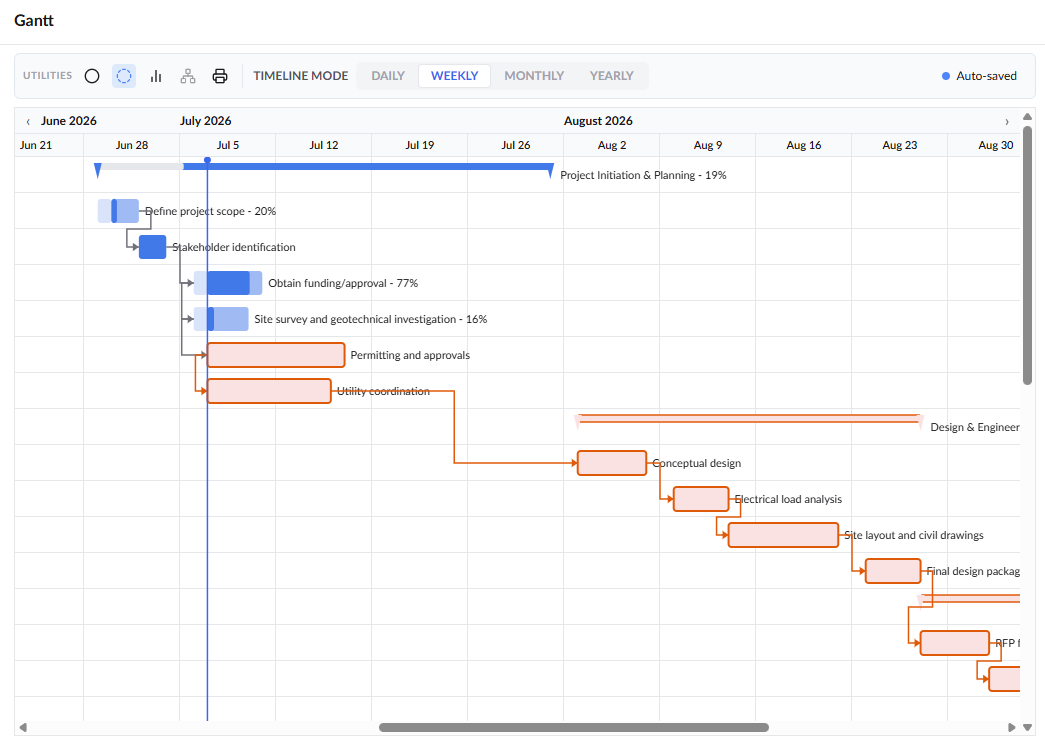
View Critical Tasks in the Gantt View

  • Choose 'Gantt View' or 'Grid and Gantt' from the drop-down at the top
  • Alternatively, click 'Gantt' on the left-hand side menu 

The calculated critical path is visually highlighted in red:

Was this article helpful?

That’s Great!

Thank you for your feedback

Sorry! We couldn't be helpful

Thank you for your feedback

Let us know how can we improve this article!

Select at least one of the reasons
CAPTCHA verification is required.

Feedback sent

We appreciate your effort and will try to fix the article