The Retain Logic method calculates your project's critical path by strictly following the original task relationships defined in the schedule. This method ensures that the sequence of work remains aligned with the initial project plan, even if some activities are started out of order in the field.
- Strict Dependencies: Original predecessor-successor relationships remain enforced throughout the calculation.
- Out-of-Sequence Handling: Activities performed out of order do not override the planned schedule logic.
- Controlled Forecasting: Remaining work continues to follow the original execution sequence, helping maintain schedule integrity and contractual planning intent.
This method is commonly used for projects with strict sequencing requirements, approval-based workflows, safety-sensitive activities, or schedules that must closely adhere to the baseline plan.
- Depending on the project schedule and task relationships, the system may identify more than one critical path within the project.
- You can recalculate the critical path at any time after schedule updates, task additions, or progress changes to ensure the latest project conditions are reflected in the analysis.
To calculate critical path by retained logic
- Ensure that you are in the 'Schedule' module of the project management console. If not,
- Click the main menu on the top-left
- Click 'Schedule' under 'Scheduler' and select 'Grid' on the left
- Click the
 icon above the table to open the 'Grid + Gantt' view
- Click
 icon from the toolbar at the top
The system calculates the critical path using all current task statuses while preserving the original task dependencies
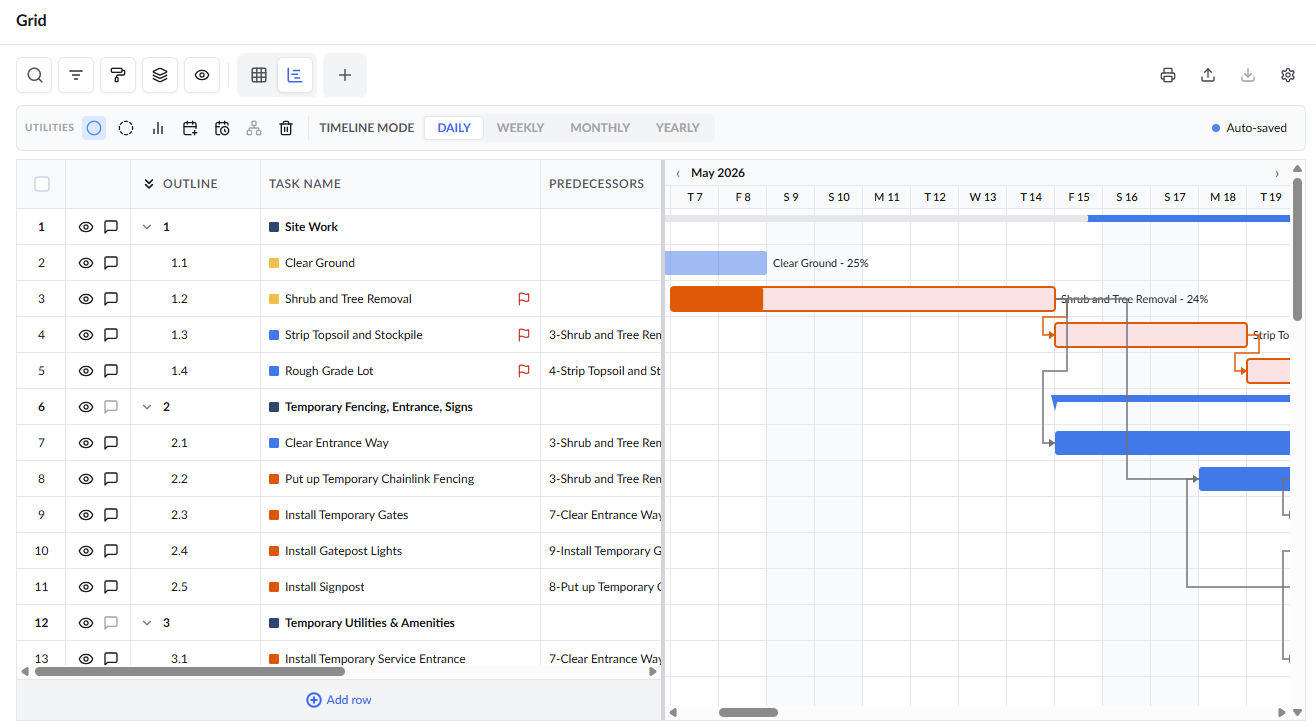
View Critical Tasks in the Grid View
- Click the
 icon at the top to return to the 'Grid' view
- Critical tasks are also indicated with the
 icon in the grid.
- Critical tasks are also indicated with the
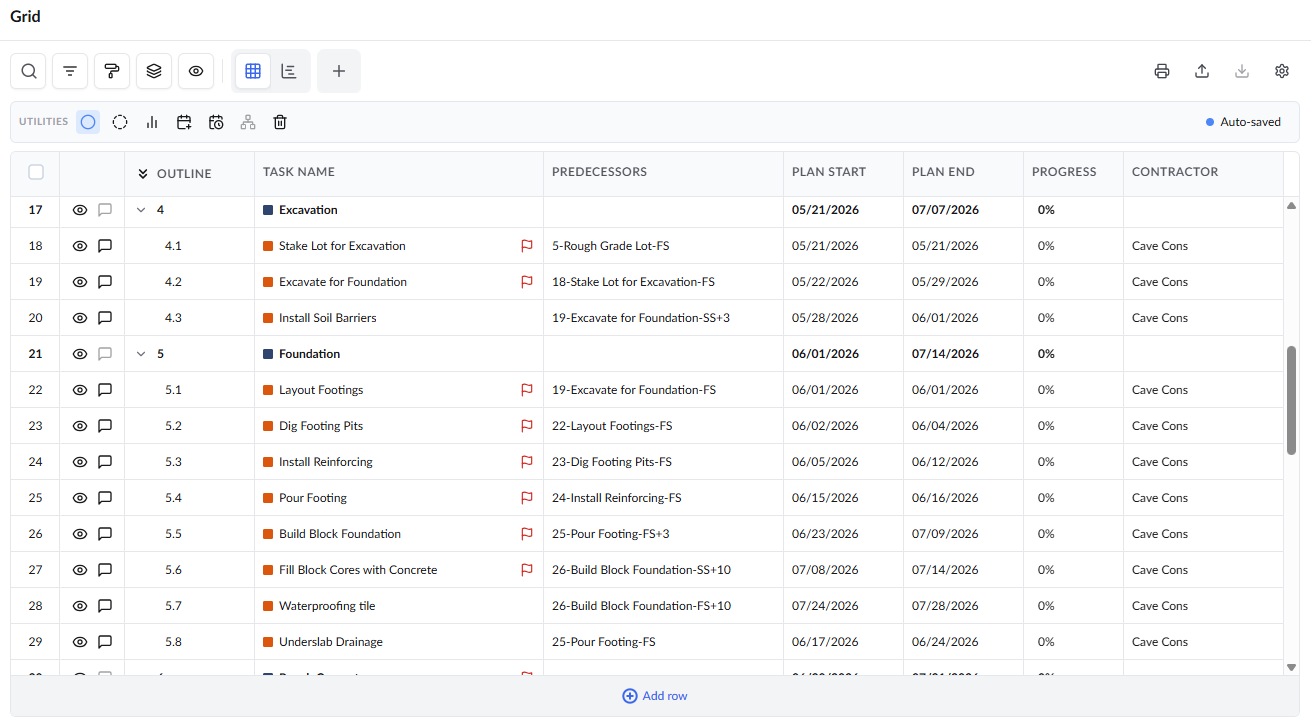
- Scheduling parameters including Early Start (ES), Early Finish (EF), Late Start (LS), Late Finish (LF), and Slack/Float are automatically calculated.
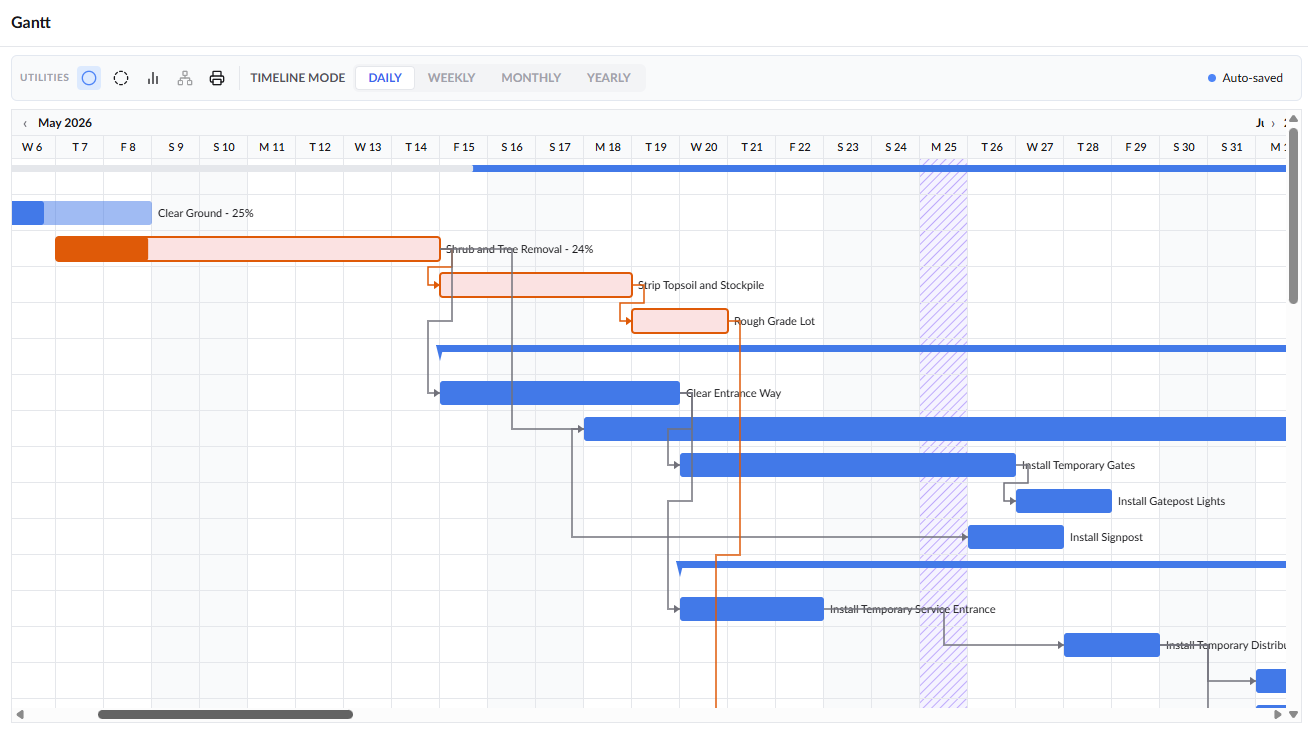
View critical tasks in Gantt view
- Click 'Gantt' on the left-hand side menu
The calculated critical path is visually highlighted in red
Was this article helpful?
That’s Great!
Thank you for your feedback
Sorry! We couldn't be helpful
Thank you for your feedback
Feedback sent
We appreciate your effort and will try to fix the article