The Report Builder provides a fast and flexible way to create reports tailored to your project needs. It offers a curated collection of standard templates that cover the most common reporting requirements. Linarc allows you to personalize these templates according to your needs while maintaining the integrity of the original system templates. You can
- Use standard Templates: Quickly generate reports using Linarc’s curated library of templates designed for common project reporting. You can clone and modify a system template to fit your needs and save it as a new custom template for report generation.
- Clone and Customize Existing Templates: Build templates from scratch or clone and modify existing ones to match your specific report requirements.
- Create Templates from Existing Reports: Turn any generated report into a reusable template
In this article, you will learn how to edit system templates, user-created templates, or existing reports to customize them for your new reports.
To Edit a Template or a Report
- Ensure you are on the 'Report Builder' screen. If not,
- Click the main menu at he top-left
- Click 'Information' under 'Project'
- Click 'Report Builder' and 'Templates' on the left to open the templates screen
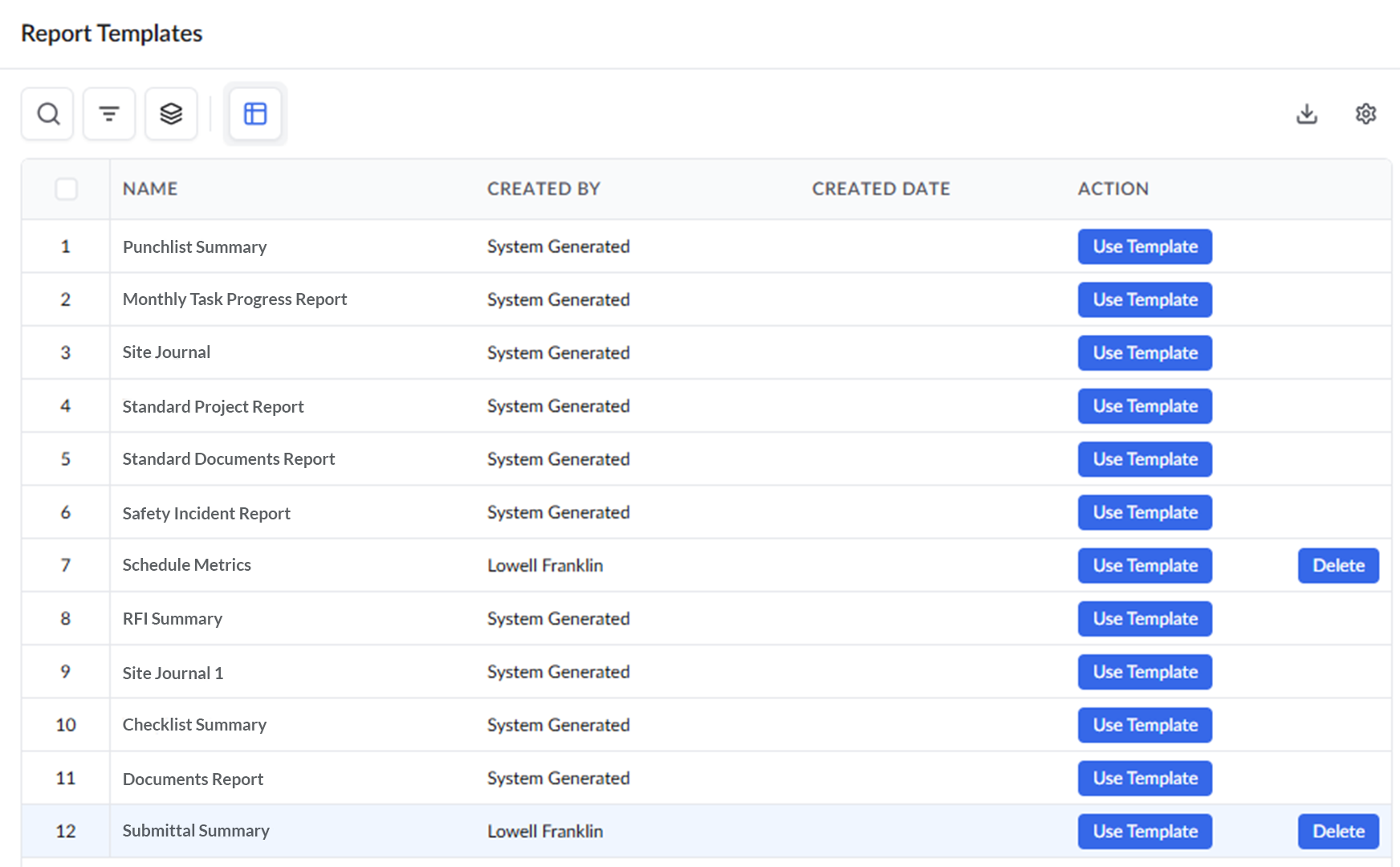
Or
- Click 'Report Builder' and 'Reports' on the left to open the reports screen
The screen shows the list of custom templates and system templates:
- Click the 'Use Template' button next to the desired template to open.
If you are in the Reports screen:
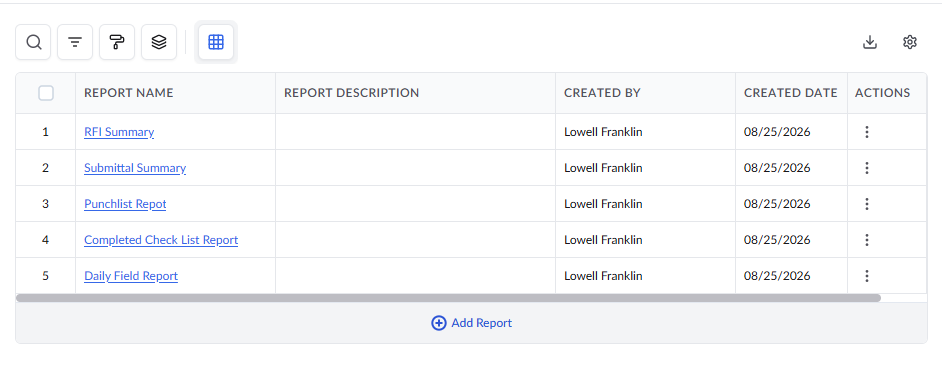
- Click the report name to open
The template or the report page opens in an editable format:
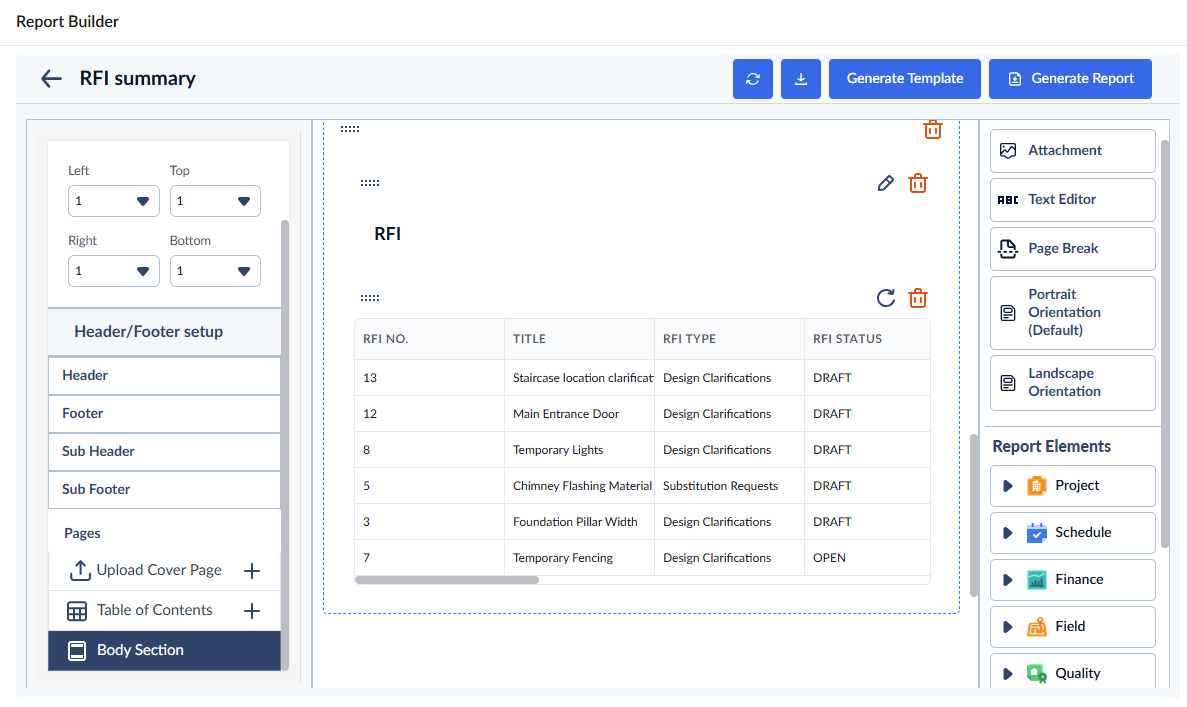
- Use the following links to jump to the section you need help with:
- Click 'Generate Template' at the top to save the report template.
Add New Elements
Inserting new elements, including general elements like text blocks, attachments, and page breaks, and adding report table elements to an existing template is similar to adding the elements during their creation. See Add New Elements for more details.
Edit Text Elements and Headings
- Move your mouse over the element to reveal the edit options
- Click the
 icon to open the text editor
 - Change the text or heading as required
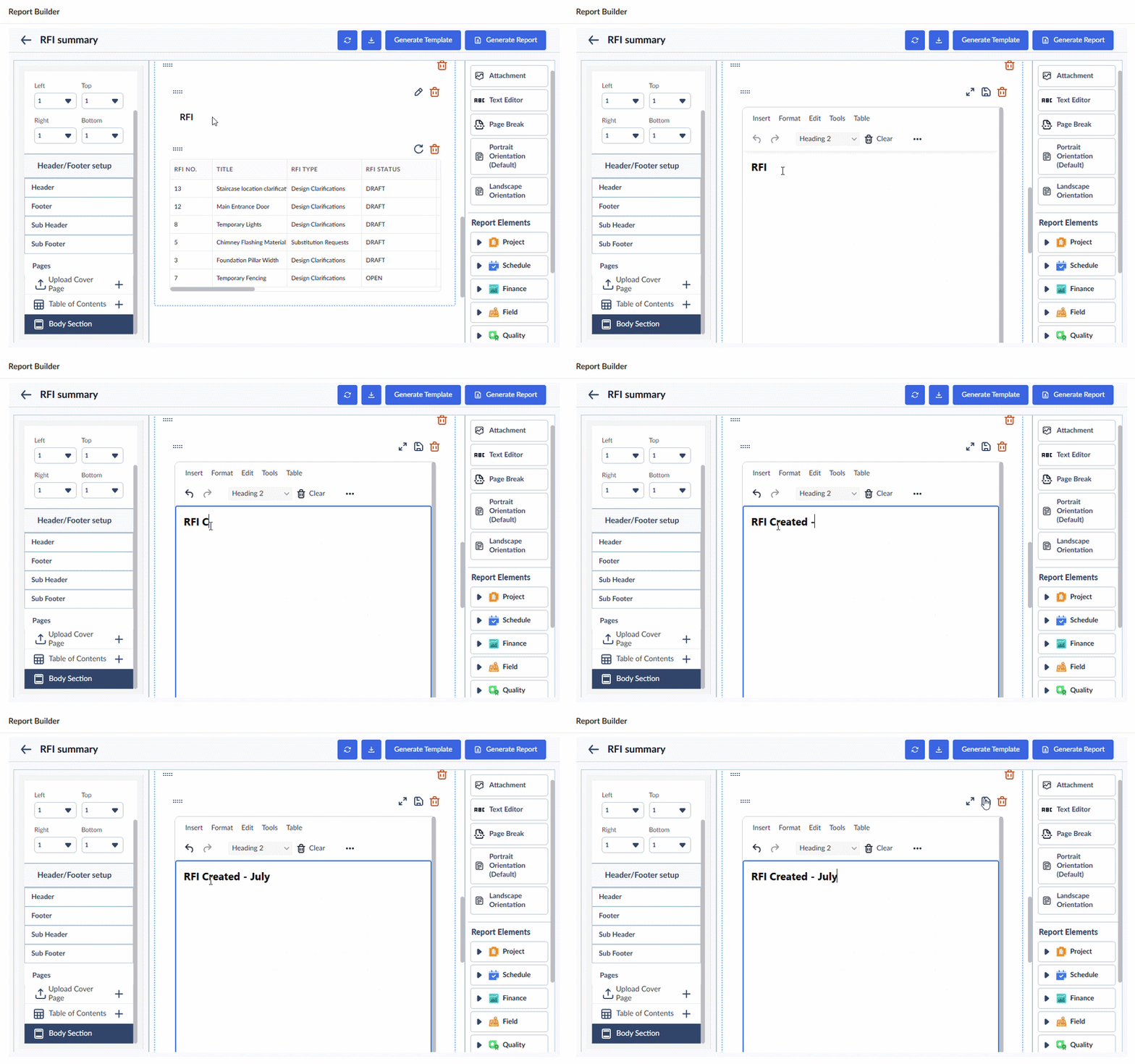
Your changes are auto-saved.
Remove Existing Elements
- Move your mouse over the element to reveal the edit options
- Click the
 icon to remove the element and confirm your action
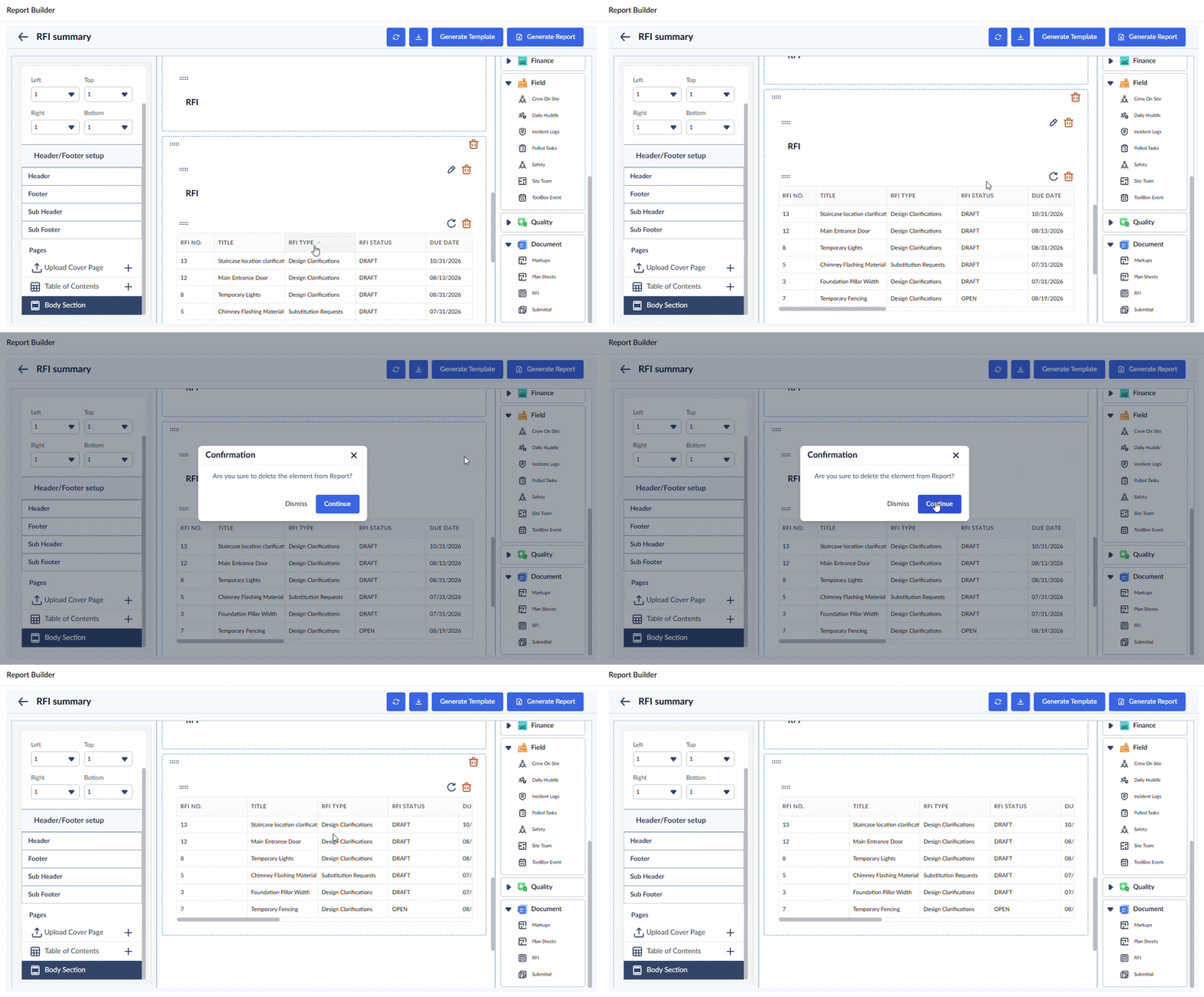
Remove Existing Element Group Block
- Move your mouse over the group block to reveal the edit options
- Click the
 icon located at the top-right corner within the block's boundary to delete the element, then confirm your action.
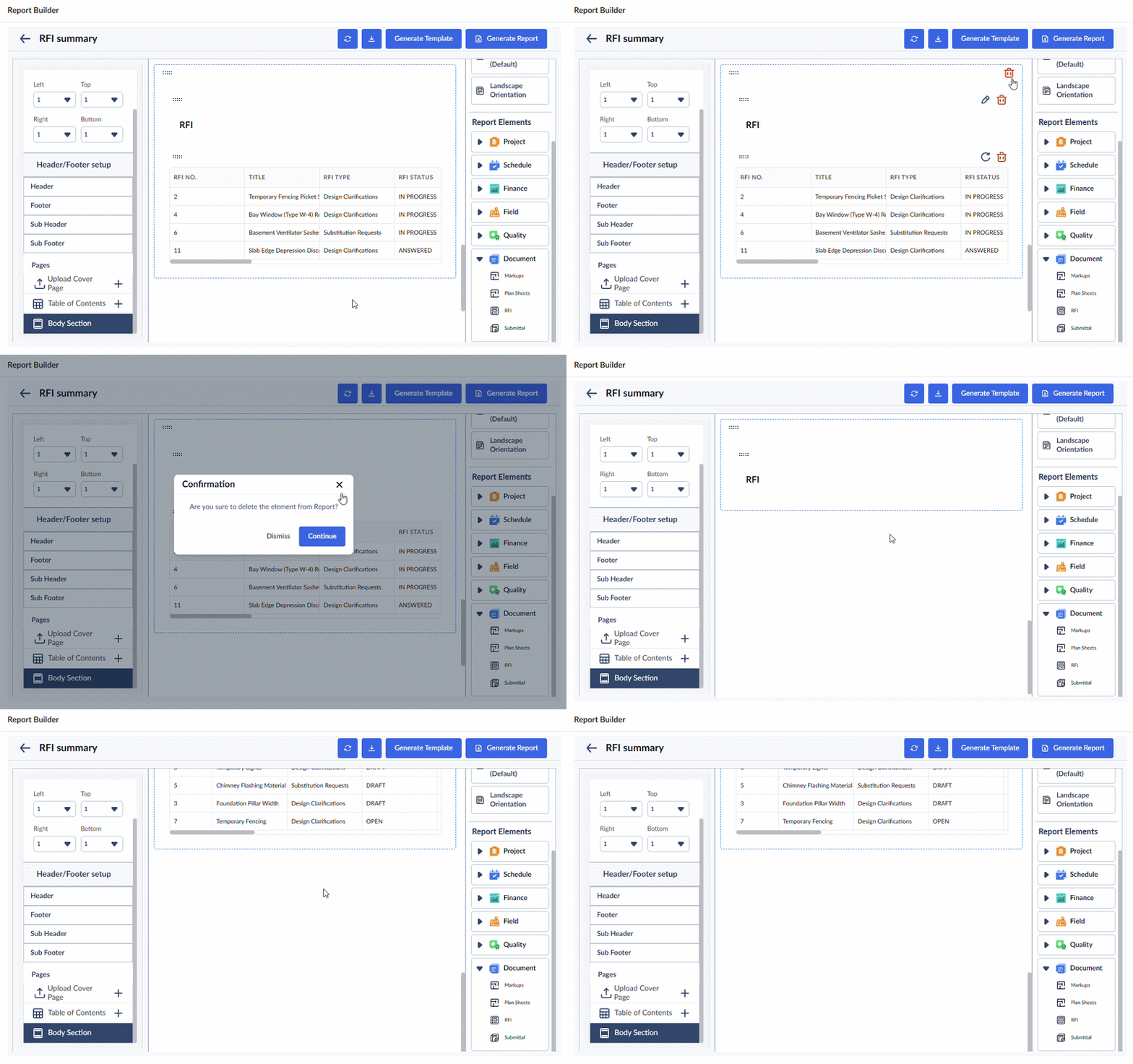
Relocate Existing Elements
- Hover your mouse over the element to display the available editing options
- Click and hold the ellipsis at the top-left, then drag the element to your desired location within the report
- Release the mouse button to drop the element into its new position
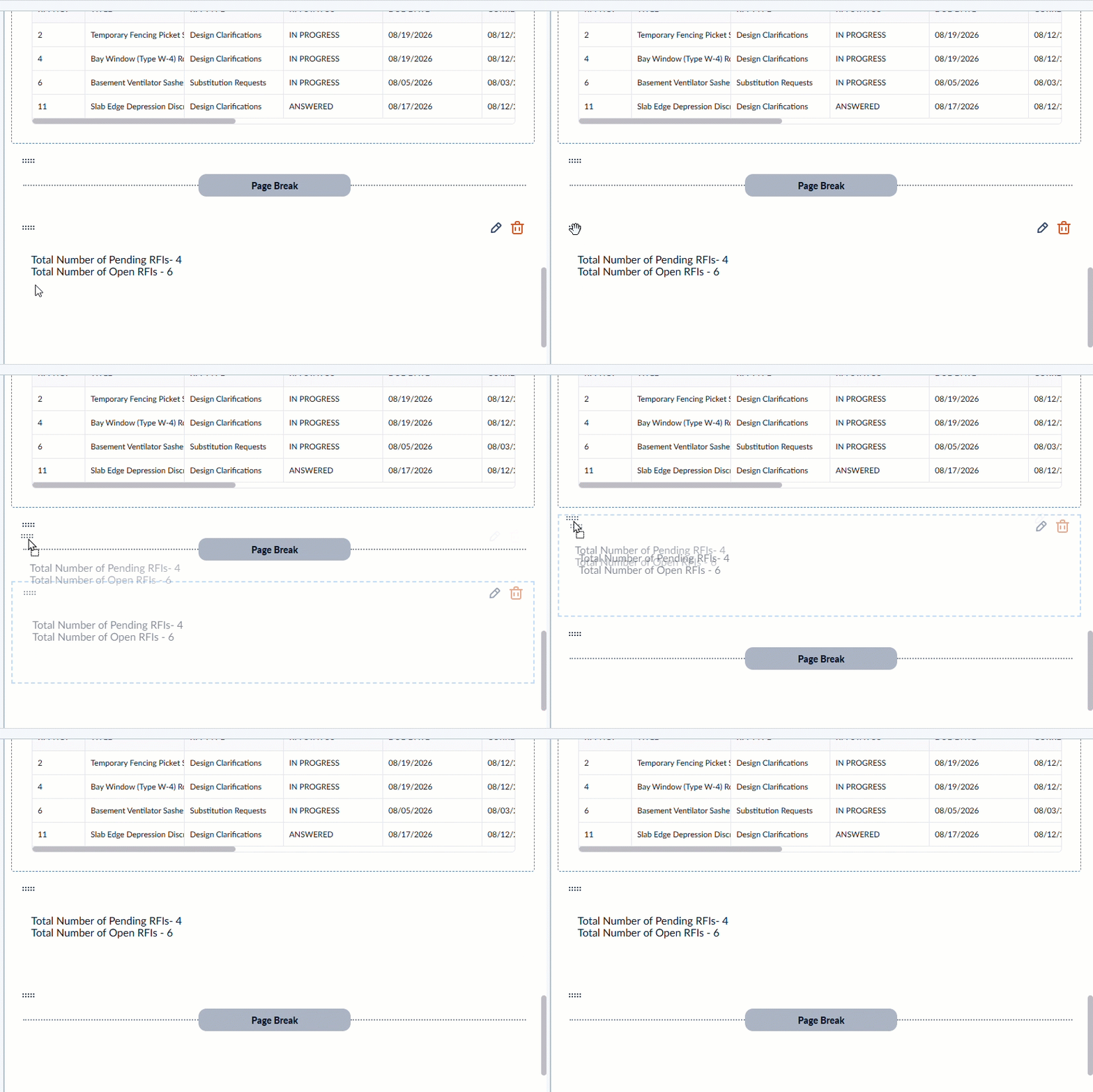
Tip: You can drag and drop an element from one group to another seamlessly.
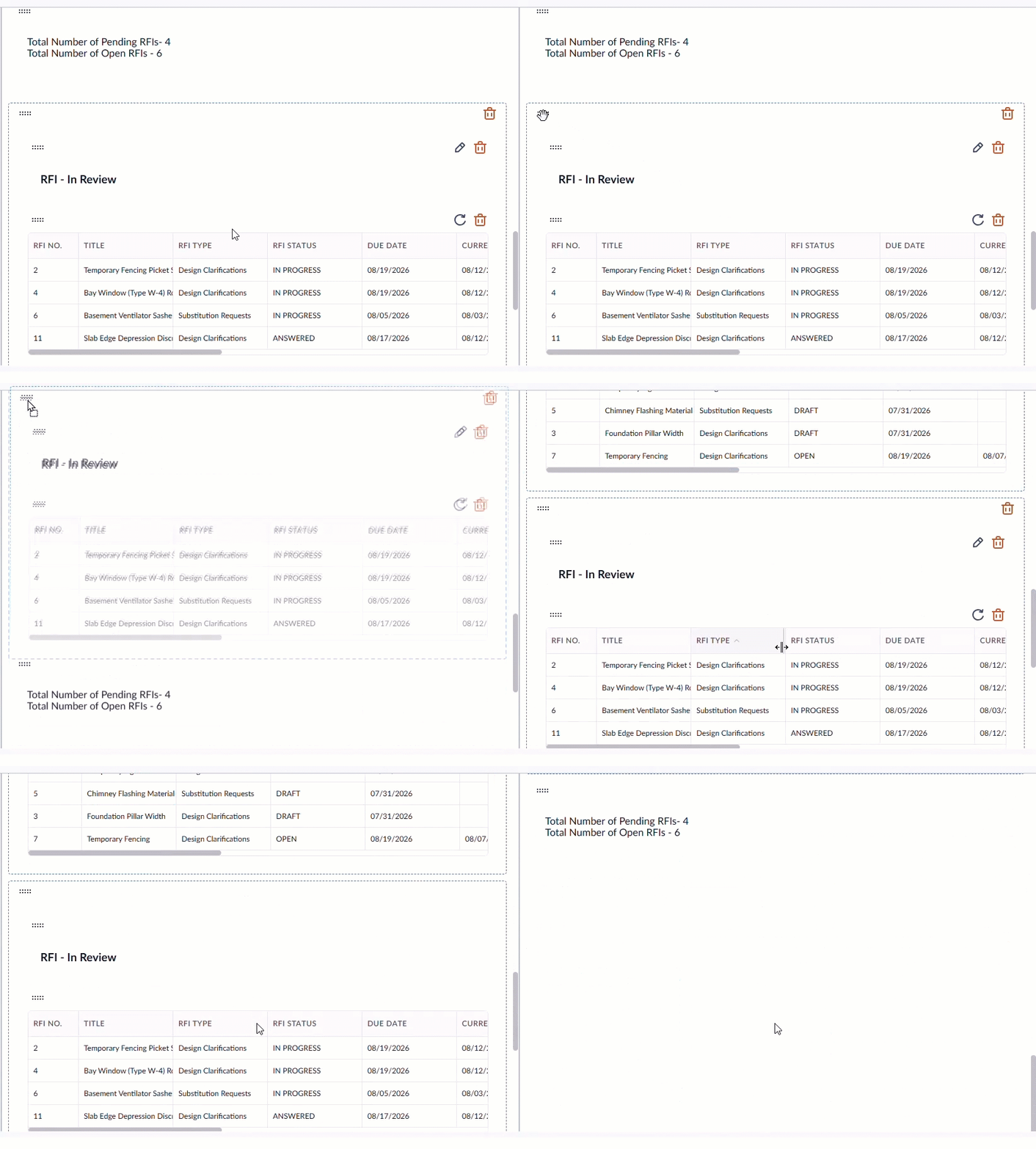
Relocate Existing Element Group Block
- Hover your mouse over the group to display the available editing options
- Click and hold the ellipsis at the top-left, then drag the element to your desired location within the report
- Release the mouse button to drop the group into its new position
Your changes are auto-saved.
- Click 'Generate Template' at the top to save the report template.
See Generate On-Demand Reports for more guidance on generating and downloading a report.
Was this article helpful?
That’s Great!
Thank you for your feedback
Sorry! We couldn't be helpful
Thank you for your feedback
Feedback sent
We appreciate your effort and will try to fix the article